
A finance team connected Snowflake as a SaaS data source on cloud scan. Data Security scanning completed with PCI disabled. Card numbers in supported scanned Snowflake table data never show up as classified data, and no classification profile was selected. What should they enable?
Select an answer to reveal the explanation.
Short Explanation
Think of your Snowflake connection as the loading dock and the classification profile as the checklist you never clipped to the clipboard. You finished a scan with PCI disabled, so card patterns in supported table data stay invisible. Cloud scan is already the right mode for this SaaS source.
Full Explanation
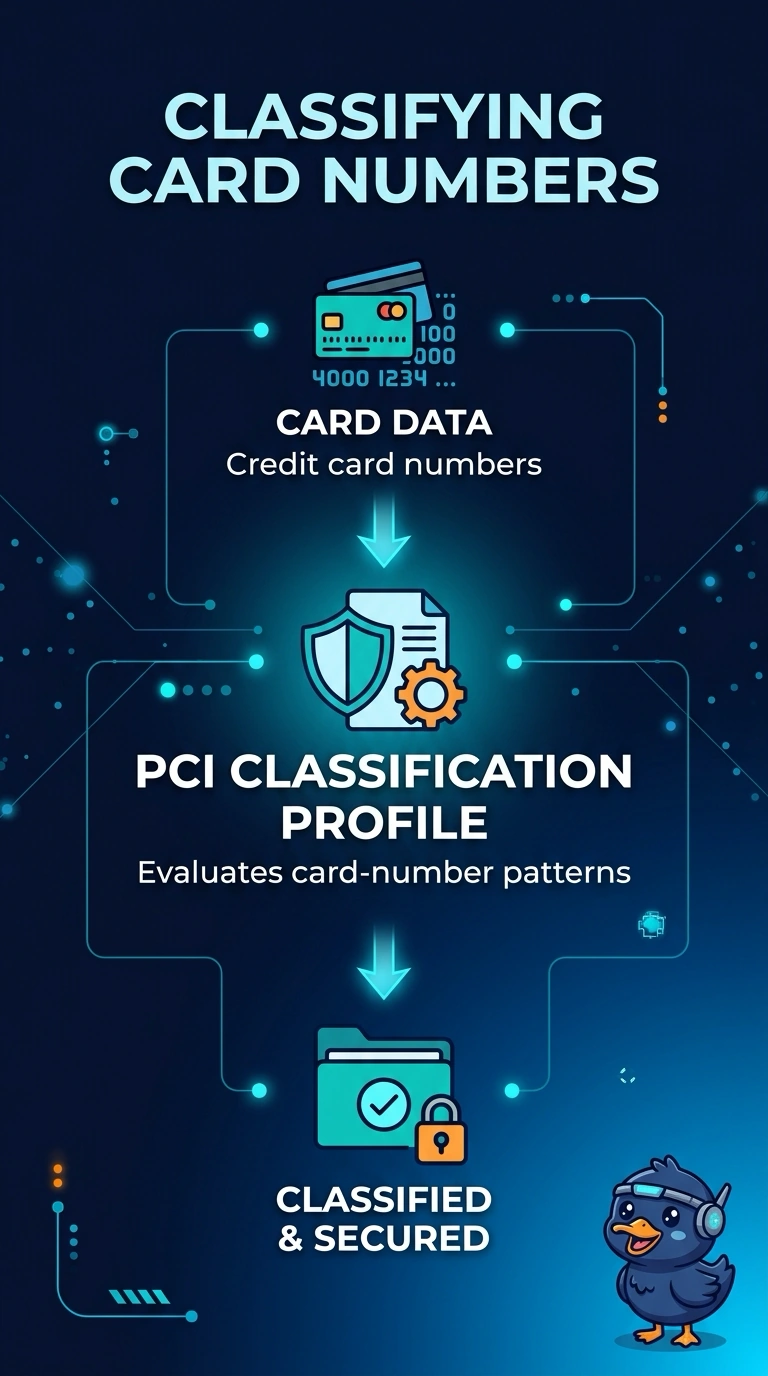
Connecting Snowflake onboards the data source. It does not by itself choose which classification profiles run. Card numbers are a pattern the product can evaluate, and the PCI profile is one of the profiles that group that kind of financial data. Until a profile is enabled, classified results for those patterns do not surface in supported scanned Snowflake table data, even though Data Security scanning completed and the cloud scan connection is in place. SaaS data security for Snowflake is cloud scan only, so an outpost in the Snowflake region is not an available substitute and is not why the card numbers are missing. A second cloud-account stack is how you onboard AWS, Azure, GCP, or OCI. Snowflake here is a data source, not a second cloud-account onboarding, and replacing the data source would drop the connection that is already correct. A GitHub webhook belongs to an application-pipeline onboarding. It does not classify table data inside a data warehouse. Exam caveat: Office 365 follows the same cloud-scan rule, and it has the same dependency on enabled profiles before sensitive columns appear. Enable the PCI profile and card pattern in Data Classification, verify supported Snowflake scan scope, and inspect populated sensitive-data findings.