
A library CV pilot fails after pulling an NGC container. What mismatch should civic ops check first?
Select an answer to reveal the explanation.
Short Explanation
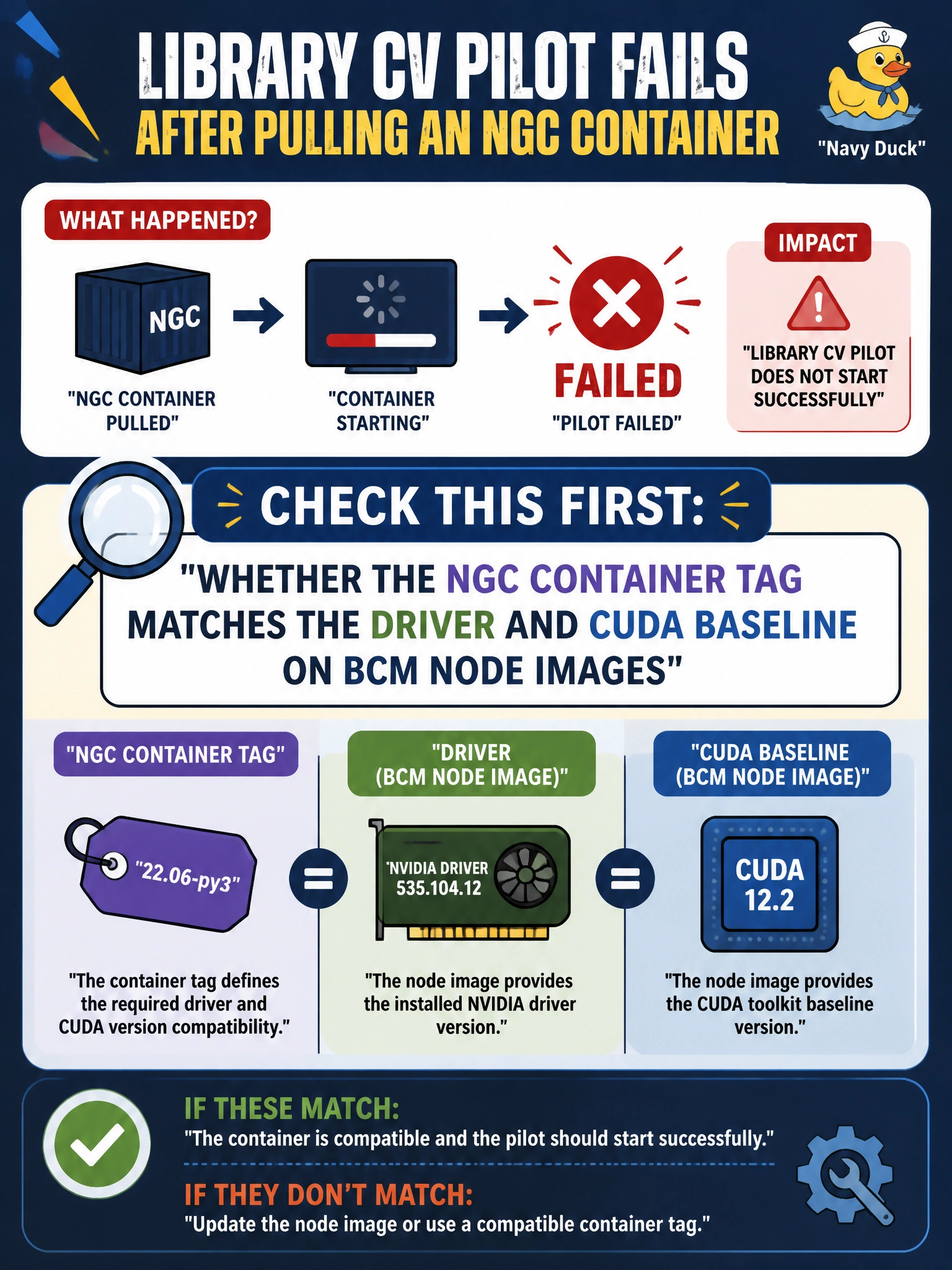
When your library CV pilot fails after an NGC pull, you should first match the container tag to the driver and CUDA baseline in the BCM node image—a GPU compatibility check. A changed Wi-Fi password or printer firmware won’t fix that mismatch, and ISBN-barcode matching is unrelated to GPU compatibility.
Full Explanation
When your library CV pilot fails after pulling an NGC container, first check whether the container tag matches the driver and CUDA baseline in the BCM node image. NGC tags encode framework and CUDA expectations; the BCM image provides the host driver and userspace that the container must work with. A tag requiring a newer CUDA baseline than the node image supports can cause import errors, kernel launch failures, or a GPU that appears present but cannot be used for inference. A changed library Wi-Fi password is not relevant to GPU compatibility after the container has been pulled. Public reading-room printers being reachable from staff workstations, or having current firmware, concerns printing rather than the GPU stack. Matching catalog ISBNs to publisher barcodes concerns bibliographic data, not container–host compatibility. Exam caveat: a successful NGC pull proves registry and network access, not that the container can run on the BCM baseline. Compare the container’s CUDA requirement with the node image’s driver before attributing the failure to application code or dataset paths. Practical check: record the failing NGC tag and its documented CUDA requirement, compare them with the BCM image’s driver and CUDA details using nvidia-smi and image build notes, then select a compatible tag or update the node image. Redeploy on a canary branch host and confirm GPU initialization before retrying the full pilot.