
An organization wants to automatically apply sensitivity labels to new files uploaded to a SharePoint Online document library that is used to store AI training datasets. The labels should be applied based on sensitive information type detection (SSN, financial account numbers). Without requiring users to manually label files. Which Purview feature achieves this?
Select an answer to reveal the explanation.
Short Explanation
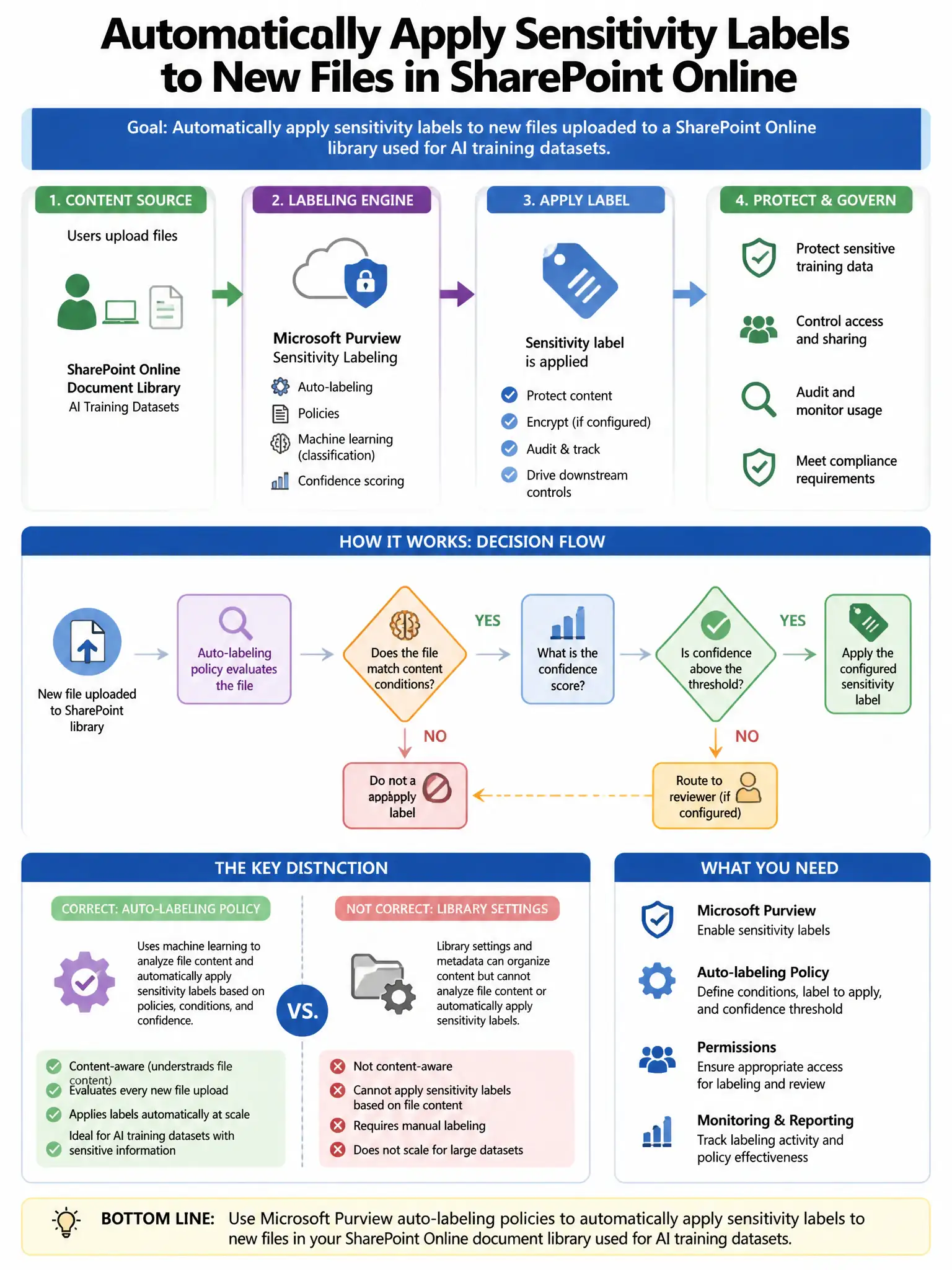
You use Purview auto-labeling scoped to the SharePoint site to scan files and apply labels when sensitive info types are detected. It works on new and existing files without user action.
Full Explanation
The correct choice is the auto-labeling policy in Microsoft Purview Information Protection scoped to the SharePoint site with sensitive information type conditions. This feature can scan SharePoint Online documents and automatically apply sensitivity labels when sensitive information types are detected. An auto-labeling policy scoped to the specific SharePoint site containing AI training datasets, with conditions for SSNs and financial account numbers, will automatically label new and existing files matching the criteria without requiring user action. The default sensitivity label configured on the SharePoint library is wrong because it applies a single label to all files in the library regardless of content; it does not detect sensitive information types to apply contextually appropriate labels. The Microsoft Defender for Cloud Apps file scan with labeling action is wrong because it can detect sensitive content and apply governance actions, but Purview Information Protection auto-labeling is the purpose-built, tightly integrated feature for sensitivity label application in SharePoint. The Azure Logic Apps workflow that labels files on upload is wrong because building a Logic Apps workflow to apply labels requires custom development and ongoing maintenance, duplicating functionality available natively in Purview auto-labeling.