
Blackwood Pharmaceutical Research has highly sensitive pre-clinical research data stored in a SharePoint site called 'R&D Confidential'. When employees use Microsoft 365 Copilot to search across the organization, results from the R&D Confidential site are appearing in Copilot responses for users who have access. The compliance officer wants to prevent the R&D Confidential site from being included in Copilot responses organization-wide, even for users who have SharePoint permissions to the site. What is the correct method to exclude this site from Microsoft 365 Copilot results?
Select an answer to reveal the explanation.
Short Explanation and Infographic
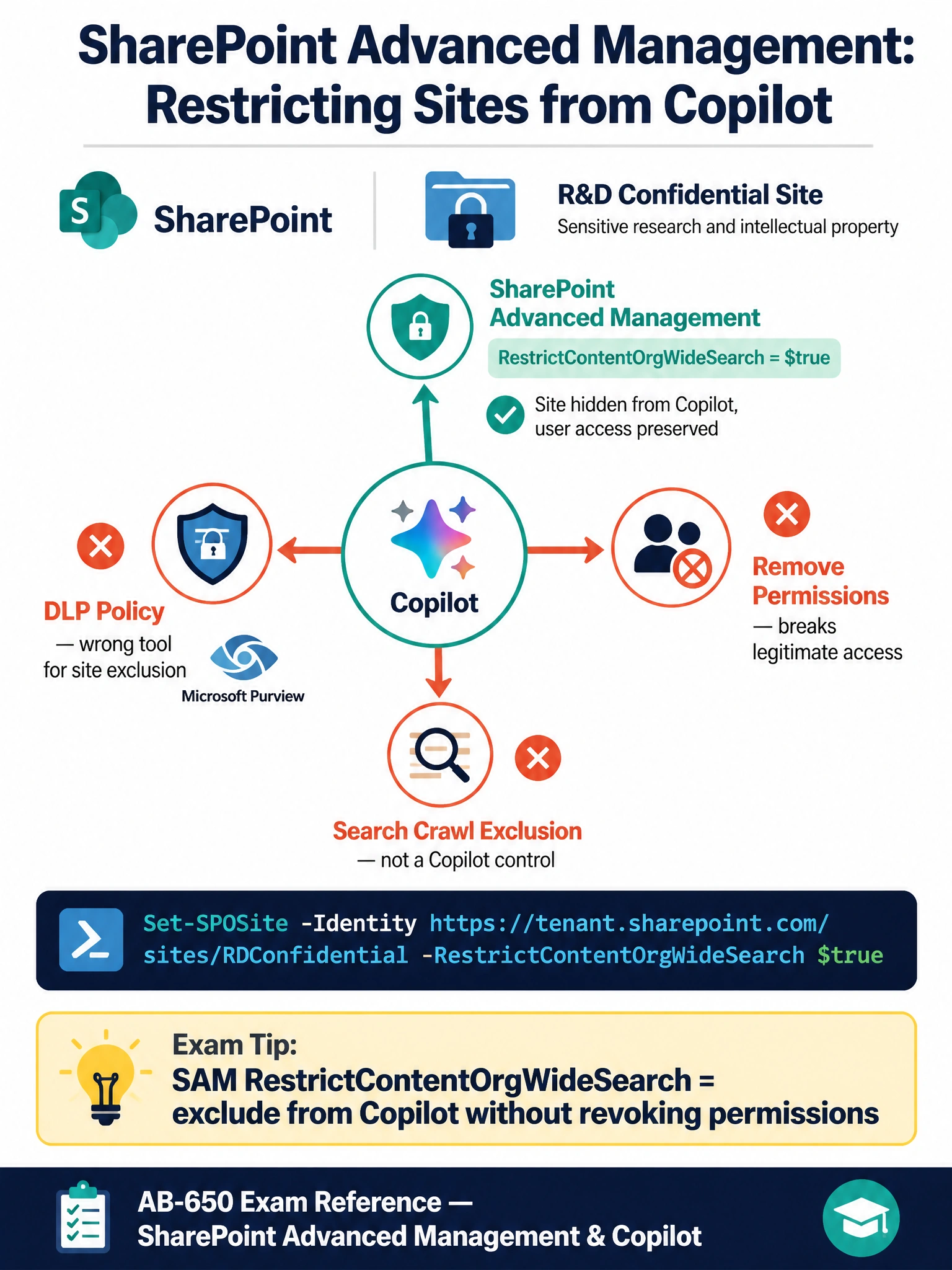
SharePoint Advanced Management's RestrictContentOrgWideSearch setting is like putting a site in a locked room — even people with a key (SharePoint permissions) can't have Copilot fetch things from it for org-wide queries. It's the surgical tool that keeps the data accessible directly but invisible to Copilot's broad search sweep.
Full explanation below image
Full Explanation
SharePoint Advanced Management (SAM) provides a feature specifically designed for this scenario: the ability to restrict a site from appearing in organization-wide search results and Microsoft 365 Copilot responses, even for users who have SharePoint permissions to the site. This is configured using the RestrictContentOrgWideSearch property on a site, which can be set via the SharePoint admin center under Advanced Management settings, or via PowerShell with the command: Set-SPOSite -Identity <SiteURL> -RestrictContentOrgWideSearch $true. This is distinct from regular SharePoint permissions — it controls whether the site's content surfaces in broad AI-driven searches and Copilot responses without removing individual user access to the site itself.
This capability is part of SharePoint Advanced Management, which requires an additional license (Microsoft SharePoint Premium - SharePoint Advanced Management or Microsoft 365 E5/A5 with SAM included). It is the purpose-built, compliance-safe answer for excluding sensitive sites from Copilot without disrupting legitimate direct access by authorized users.
Option B is incorrect because removing all user permissions would prevent legitimate access to the site entirely — that is an extreme measure that breaks the business workflow. Furthermore, the scenario specifies that users with access should still be able to use the site directly; the goal is only to suppress Copilot surfacing the content in broad org-wide responses. Revoking permissions is not a targeted or appropriate solution for this compliance requirement.
Option C is incorrect because there is no 'crawl exclusion rule' in the Microsoft 365 admin center search settings that functions the way described. Microsoft Search indexing controls exist, but they are not a supported mechanism for selectively excluding SharePoint sites from Copilot responses while keeping them accessible to permissioned users. The correct tool for this is SharePoint Advanced Management, not search index crawl settings.
Option D is incorrect because Microsoft Purview Data Loss Prevention (DLP) policies are designed to detect and prevent the sharing or exfiltration of sensitive data — they do not function as site-level access controls for Copilot. DLP policies can flag or block certain actions when sensitive content is detected, but they cannot be configured to broadly prevent Copilot from surfacing a specific SharePoint site's content in responses. DLP operates at the content/activity level, not at the site-visibility-in-search level.
Exam tip: SharePoint Advanced Management (SAM) is a key topic for AB-650. Know that RestrictContentOrgWideSearch is the correct setting for blocking a site from Copilot and org-wide Microsoft Search without removing user permissions. This is the permission-preserving, Copilot-exclusion path — different from sensitivity labels, DLP, or permission removal.