
Pinnacle Healthcare Systems wants to automatically assign Microsoft 365 E3 licenses to all employees whose Department attribute in Microsoft Entra ID is set to 'Nursing', without requiring any manual license assignment each time a new Nursing employee is onboarded or transferred. The solution must work continuously and without admin intervention after initial setup. What is the correct approach to achieve this?
Select an answer to reveal the explanation.
Short Explanation and Infographic
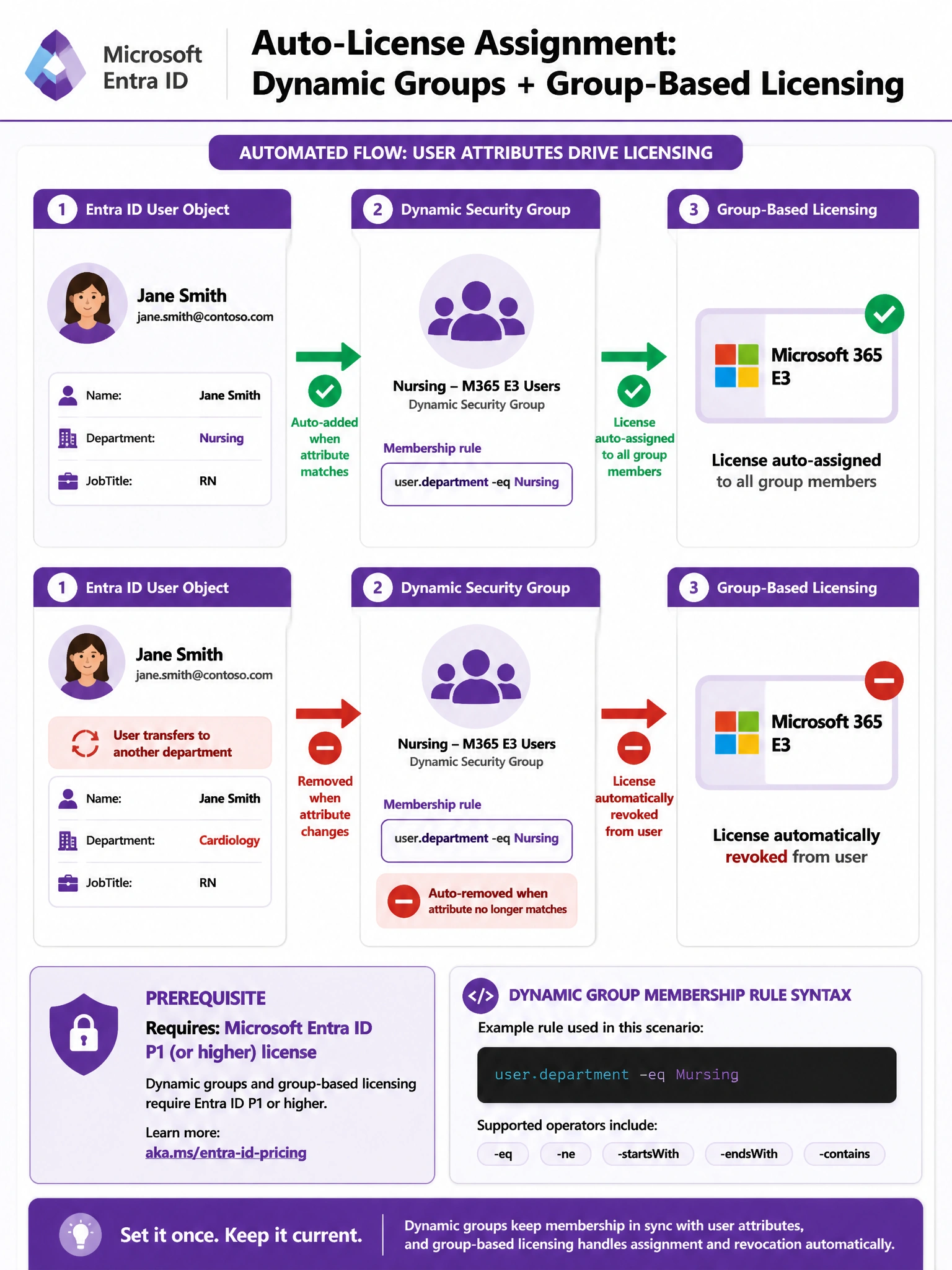
Dynamic groups in Entra ID are like a smart playlist — you define the rule once (department = Nursing) and membership updates itself automatically as people come and go. Pair that with group-based licensing and the E3 license follows the membership automatically, no admin babysitting required.
Full explanation below image
Full Explanation
The correct solution combines two features: dynamic group membership in Microsoft Entra ID and group-based licensing. A dynamic security group uses a membership rule — in this case, user.department -eq "Nursing" — to automatically include or exclude users based on their Entra ID attributes. When a new nurse is onboarded with the correct Department attribute, they are automatically added to the group. When someone transfers out of Nursing, they are automatically removed. The E3 license assigned to the group via group-based licensing follows this membership in near-real-time, requiring no manual intervention after initial setup. This is the purpose-built solution for attribute-driven, zero-touch license management at scale.
Option A (static group with manual additions) fails the core requirement of no manual intervention. Every time a Nursing employee is hired, transferred in, or transferred out, an admin must manually update the group. This is error-prone and does not scale in a healthcare environment with high staff turnover.
Option B (nightly PowerShell script) is a functional workaround but is not the recommended or exam-correct approach. It introduces a delay of up to 24 hours between a user's attribute change and their license assignment, requires ongoing maintenance of the script, and adds operational complexity. Microsoft's designed solution for this scenario is dynamic groups + group-based licensing, not scripted workarounds.
Option D ('Auto-assign rules' in M365 admin center Billing > Licenses) is a fabricated distractor. No such 'Auto-assign rules' feature exists under Billing > Licenses in the Microsoft 365 admin center. License assignment automation is handled through group-based licensing tied to Entra ID groups — not through a dedicated auto-assign rules interface in the billing section.
Exam tip: When you see 'automatic', 'no manual intervention', and an attribute like Department or JobTitle in a Microsoft 365 licensing question, the answer almost always involves: (1) dynamic Entra ID security group with a membership rule, and (2) group-based licensing assigned to that group. Remember that dynamic groups require at minimum a Microsoft Entra ID P1 license — that detail sometimes appears in exam questions as a prerequisite.