
Contoso needs to ensure that all email attachments are scanned in a sandbox environment before users can open them. However, users must still be able to read the email body immediately — they should not wait for attachment scanning to complete before the message is delivered to their inbox. Which Safe Attachments action should the admin configure?
Select an answer to reveal the explanation.
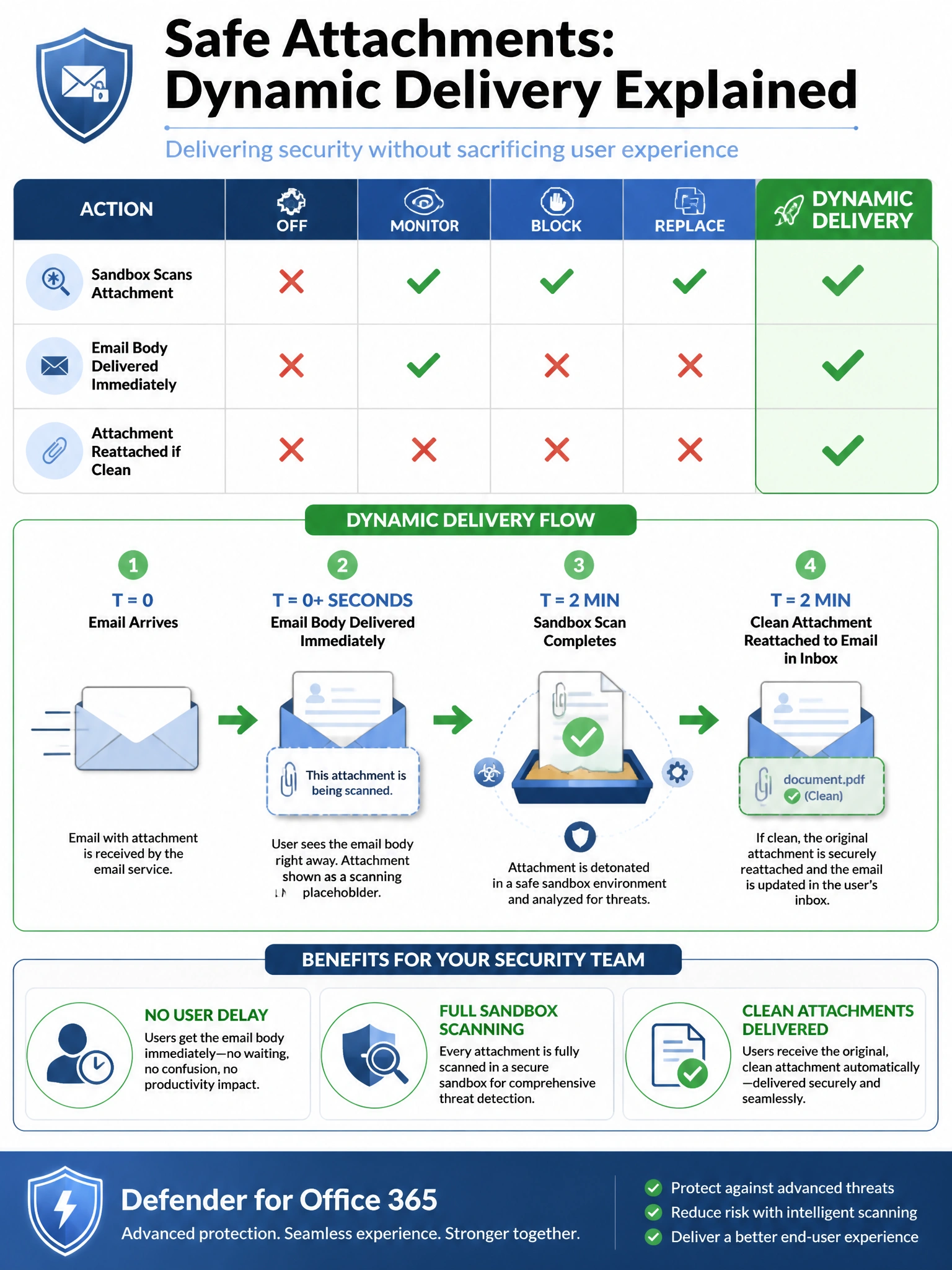
Short Explanation and Infographic
Dynamic Delivery is the 'have it both ways' action — users get the email instantly, but the attachment shows up as a placeholder with a 'scanning in progress' message until the sandbox gives it the all-clear (then it re-attaches automatically). Block makes users wait. Dynamic Delivery keeps productivity up while keeping security tight. Think of it like a package at the front desk while security X-rays it.
Full explanation below image
Full Explanation
Microsoft Defender for Office 365 Safe Attachments has four configurable actions: Off (no scanning), Monitor (scan and deliver, report results), Block (hold delivery until scan completes, block if malicious), Replace (strip attachment, deliver message body with placeholder), and Dynamic Delivery (deliver message body immediately with a scanning placeholder where the attachment was; replace with clean attachment when scan passes, or block if malicious). Dynamic Delivery is the only action that satisfies both requirements: sandbox scanning of all attachments AND immediate delivery of the email body to users.
Option A (Block action) satisfies the scanning requirement but fails the immediate delivery requirement. With Block, the entire email — body and attachment — is held in a queue until the attachment scan completes. Scan times can range from seconds to minutes depending on file type and size, creating user-visible delays especially for large attachments.
Option C (Replace action) is more aggressive than Dynamic Delivery — it unconditionally removes the attachment from the email and delivers the message body with a notification that the attachment was removed. This does not 'replace after scan passes'; it permanently strips attachments. Replace is appropriate when the admin wants to prevent all attachment delivery to a specific group, not when they want safe delivery of clean attachments.
Option D (Safe Attachments for SharePoint/OneDrive only) is addressing a different protection surface. Safe Attachments for SharePoint, OneDrive, and Teams scans files uploaded to those services — it is separate from email attachment scanning. Exchange Online Protection (EOP) provides basic antimalware scanning for email, but EOP sandbox detonation is not equivalent to Defender for Office 365 Safe Attachments sandboxing, which is more advanced.
Exam tip: Know all five Safe Attachments actions and when to use each: Off (testing), Monitor (pilot phase), Block (high security, tolerate delays), Replace (strip all attachments from a group), Dynamic Delivery (best balance of security and productivity — most recommended for production). Safe Attachments is a Defender for Office 365 Plan 1 feature.