
Multiple users at Woodgrove Bank report receiving phishing emails that appear to have been delivered to their inboxes despite having anti-phishing policies in place. The security admin needs to investigate the delivery action, determine where the emails were delivered, identify how many users received them, and check whether any users clicked links in the emails. What tool should the admin use?
Select an answer to reveal the explanation.
Short Explanation and Infographic
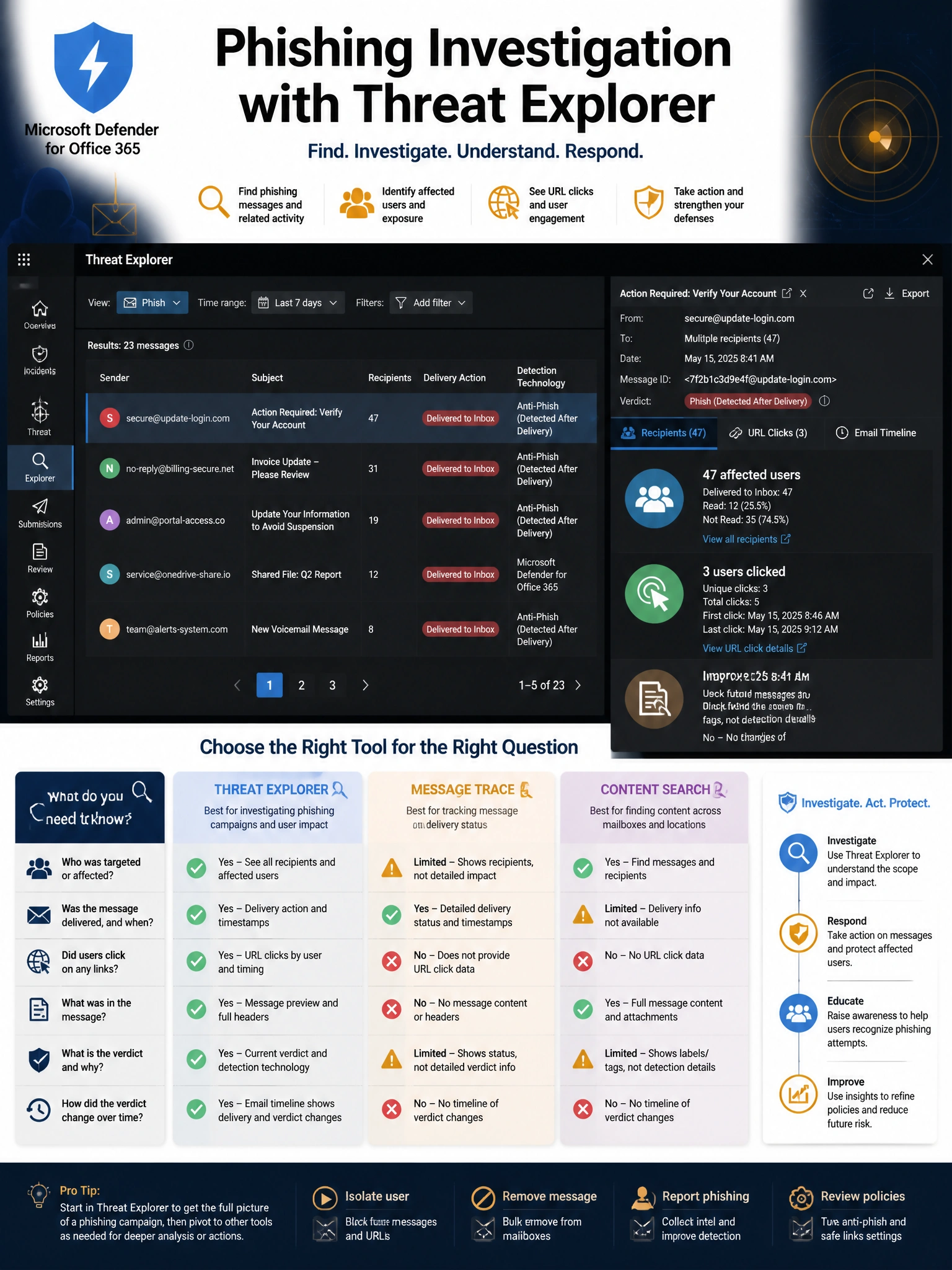
Threat Explorer is your command center for phishing investigations — it's like a security war room dashboard specifically for email threats. Filter by 'Phish', see every affected user in one view, check the delivery action (why wasn't it blocked?), see where it landed (Inbox vs Junk vs Quarantine), and click into URL data to see if anyone clicked the malicious link. Message Trace shows delivery, but it doesn't show you threat verdict or click data.
Full explanation below image
Full Explanation
Microsoft Defender for Office 365 Threat Explorer (and its near-real-time cousin, Real-time Detections) is the primary investigation tool for email-based threats. Accessed via Microsoft 365 Defender > Email & Collaboration > Explorer, an admin can filter by detection technology, sender domain, subject, or detection verdict. For phishing investigation: setting the view to 'Phish' surfaces all phishing-detected emails in the selected time range. Each result shows the delivery action (Delivered, Blocked, Replaced), delivery location (Inbox, Junk, Quarantine, Deleted Items), and the sending infrastructure details. Clicking into a specific campaign reveals affected recipients and — critically — the URL click data tab shows whether users clicked through and the click verdict (blocked, allowed, allowed at time of delivery but later found malicious).
Option A (Content Search in Purview) can find emails in mailboxes based on content criteria, but it is a compliance and discovery tool, not a security investigation tool. It does not show threat verdicts, delivery actions, or URL click data. It also requires knowing specific search terms and doesn't provide the threat intelligence context that Threat Explorer provides.
Option B (Message Trace in Exchange admin center) shows email routing and delivery events — very useful for determining if an email was received and where it went. However, Message Trace does not show the security verdict (why wasn't it caught?), does not aggregate by campaign or threat, and does not include URL click activity. It is appropriate for individual email delivery questions, not phishing campaign investigations.
Option D (mail flow reports in EAC) provides aggregate volume metrics and trend data for email categories. While it can show 'phishing email volume over time', it does not provide the per-message, per-user, or per-URL detail needed to investigate an active phishing campaign and determine who is affected and what they did with the emails.
Exam tip: Threat Explorer is available with Defender for Office 365 Plan 2. Real-time Detections is the Plan 1 equivalent with a 30-day lookback vs 7 days. Know the three Threat Explorer views: All email, Malware, and Phish. The 'Email timeline' and 'URL click data' tabs within a message details view are common exam topics.