
A Copilot Studio agent needs to transfer unresolved conversations to a live customer service representative using Dynamics 365 Customer Service. Which node type should the developer add to the escalation topic, and what must be configured for the handoff to work?
Select an answer to reveal the explanation.
Short Explanation and Infographic
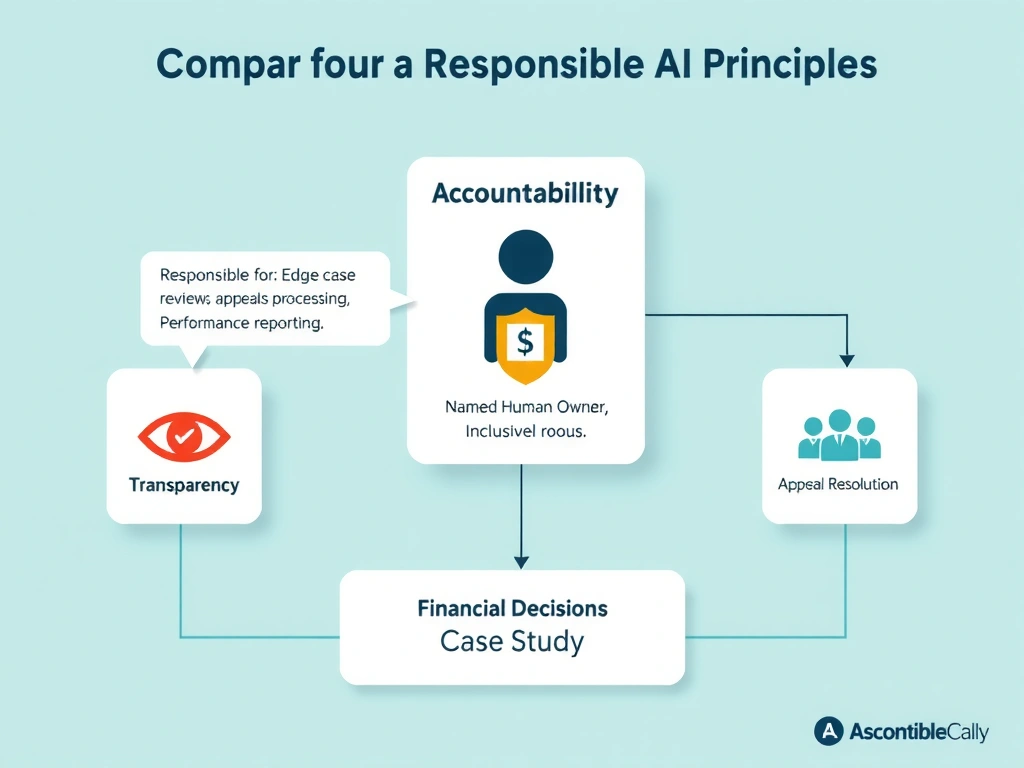
The 'Transfer to Agent' node is the handoff switch — pair it with a configured Dynamics 365 Customer Service handoff provider and the live conversation transfers seamlessly with full context. Answer: B.
Full explanation below image
Full Explanation
Copilot Studio provides a dedicated 'Transfer to Agent' node for routing live conversations to human agents. This node triggers the configured handoff provider to take over the conversation.
Option B is correct. The 'Transfer to Agent' node in the topic signals that the conversation should be handed to a live agent. For this to work with Dynamics 365 Customer Service, the developer must also configure the Omnichannel for Customer Service integration in the agent's channel settings. This integration allows Copilot Studio to pass the conversation — including the full transcript and any context variables the developer specifies — to the Dynamics 365 agent desktop. The human agent receives the conversation with complete history.
Option A is incorrect. Sending a message and redirecting to 'End of Conversation' terminates the bot session but does not initiate a live agent transfer. The user would need to contact support through a completely separate channel.
Option C is incorrect. Creating a Dynamics 365 case and emailing the support queue is an asynchronous support pattern (ticketing), not a live real-time chat handoff. The user is not connected to a live agent — they are placed in a queue to receive a response later.
Option D is incorrect. The 'End Conversation' node ends the bot session entirely. It does not route to a human agent queue. There is no automatic routing to human agents from the End Conversation node.