
Svetlana is a Copilot Studio developer at Ironbridge Manufacturing. She has imported a plugin action that calls an ERP system to look up purchase order status. She now needs to wire this plugin into an agent topic so that when a procurement manager asks 'What is the status of PO #12345?', the agent invokes the plugin and displays the result. Which configuration steps are required to enable the plugin action within the topic?
Select an answer to reveal the explanation.
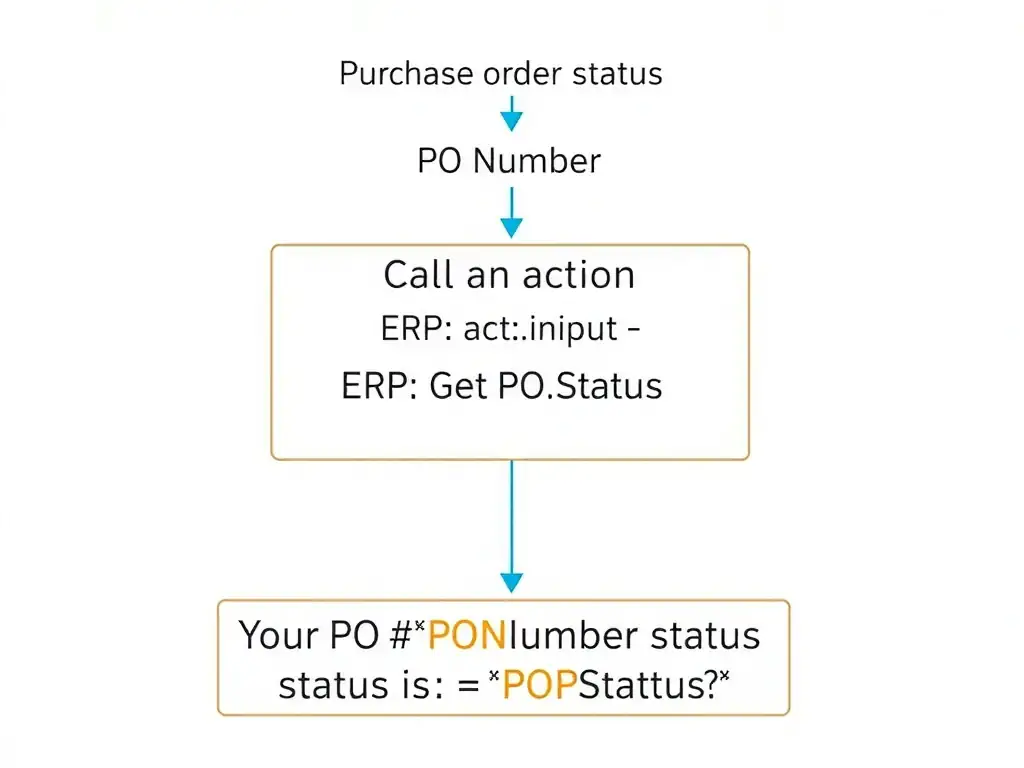
Short Explanation
Wiring a plugin into a topic is a simple play in the Copilot Studio canvas: drop a 'Call an action' node, pick your plugin, map inputs, then show the output in a message node. You don't need coding, HTTP calls, or Teams publishing.
Full Explanation
Copilot Studio's visual topic designer provides a 'Call an action' node specifically for invoking plugin actions, Power Automate flows, and other connected actions. This node integrates with the agent's action registry, presenting all registered plugins in a picker without requiring any direct API configuration.
The correct configuration is the one that adds a 'Call an action' node to the topic, selects the imported plugin action from the action picker, maps the purchase order number from the conversation to the action's input parameter, and adds a message node that uses the action's output variable to display the status. In the topic's conversation flow, insert the 'Call an action' node after the intent is recognized. Open the action picker and select the ERP plugin action. Map the PO number, which Svetlana's topic has already captured in a variable like 'Topic.PONumber', to the plugin's input parameter. After the node runs, the plugin returns an output variable, such as 'Topic.POStatus'. Add a 'Send a message' node referencing that output variable to display the status to the user.
The option that copies the plugin's API endpoint URL into a 'Send HTTP Request' node, passes the PO number as a query parameter, and parses the JSON response using a 'Parse value' node is incorrect because 'Send HTTP Request' is a lower-level approach that bypasses the plugin framework. It requires manually constructing the request, handling authentication, and parsing the response, all of which the plugin action handles automatically. More importantly, this approach would not use the imported plugin at all, defeating its purpose.
The option that publishes the plugin to the Microsoft Teams app store, installs it in the Teams channel where the agent is deployed, and then uses a 'Redirect' node in the topic to forward queries to the Teams app is incorrect because publishing to the Teams app store is a distribution step for end-user discovery of apps. It has no bearing on how a Copilot Studio topic invokes a backend action. The Redirect node sends users to a different topic, not to a Teams app.
The option that configures a Power Automate flow that calls the ERP API, then embeds the flow's HTTP endpoint URL in the topic's YAML definition file and redeploys the agent via the CLI is incorrect because embedding a raw HTTP endpoint in YAML and deploying via CLI is an unsupported, undocumented approach. Copilot Studio agents are not configured by editing raw YAML files and running CLI deployments in the standard authoring experience. This option describes a fabricated workflow.
Exam tip: The pattern for any plugin action in a topic is always: Call an action node -> input parameter mapping -> output variable -> message node. This four-step pattern appears in multiple exam scenarios.