
After deployment, a backup application job fails. Data Domain hardware and core services report healthy, and alerts show no storage or network faults. What should you verify next before changing appliance configuration?
Select an answer to reveal the explanation.
Short Explanation
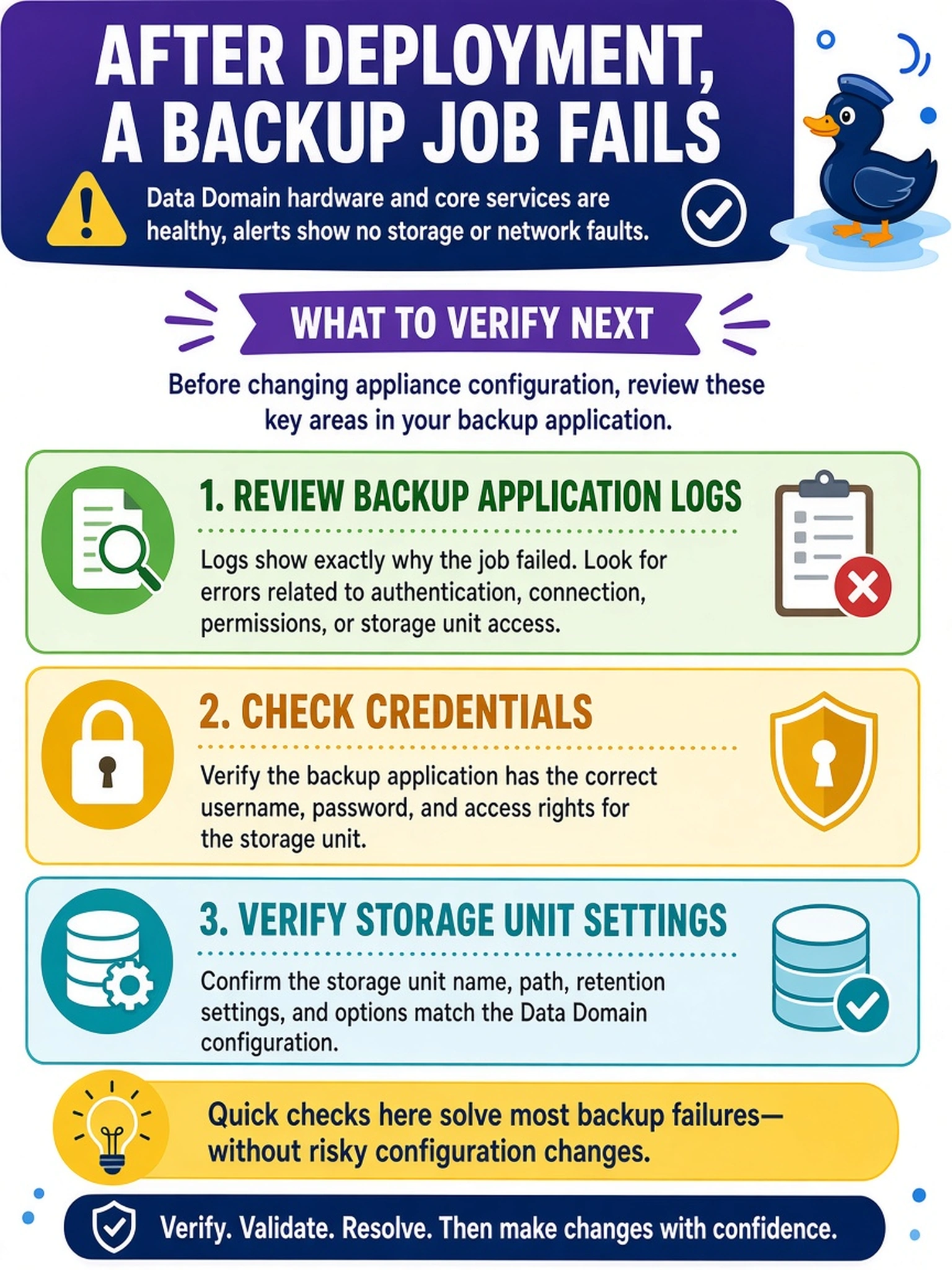
Think of it like a doctor's triage: you clear the patient first, then ask the referring clinic what went wrong. Since the Data Domain hardware and services are already healthy, your next stop is the backup application's own logs and storage unit settings. Don't start rebooting appliances or rebuilding MTrees just because the job failed.
Full Explanation
When a backup job fails, the cleanest troubleshooting sequence is to prove the Data Domain plane is healthy before investigating the backup application plane. Data Domain hardware status, DD OS services, capacity, network interfaces, and system alerts can rule out appliance faults. Once those are normal, application logs, storage unit definitions, credentials, schedules, and policy mappings are the next likely failure points because the application initiates the write and presents target settings to the appliance. The wrong approach is to restart Data Domain services when services and alerts are already healthy; that can interrupt valid sessions and does not address application-side errors. Rebuilding an MTree or changing retention lock and encryption is also incorrect because those are data-protection controls, not evidence-backed causes of a failed job when the target is reachable and services are up. Replacing media or reconfiguring the appliance network interface is likewise unsupported by the scenario, since no hardware, capacity, or network alert exists. Exam caveat: do not skip appliance health checks, but once they pass, move to the backup software integration layer. Operational check: compare the backup application job log timestamp with Data Domain service and alert history, then verify the storage unit, credentials, and target path used by the job.