
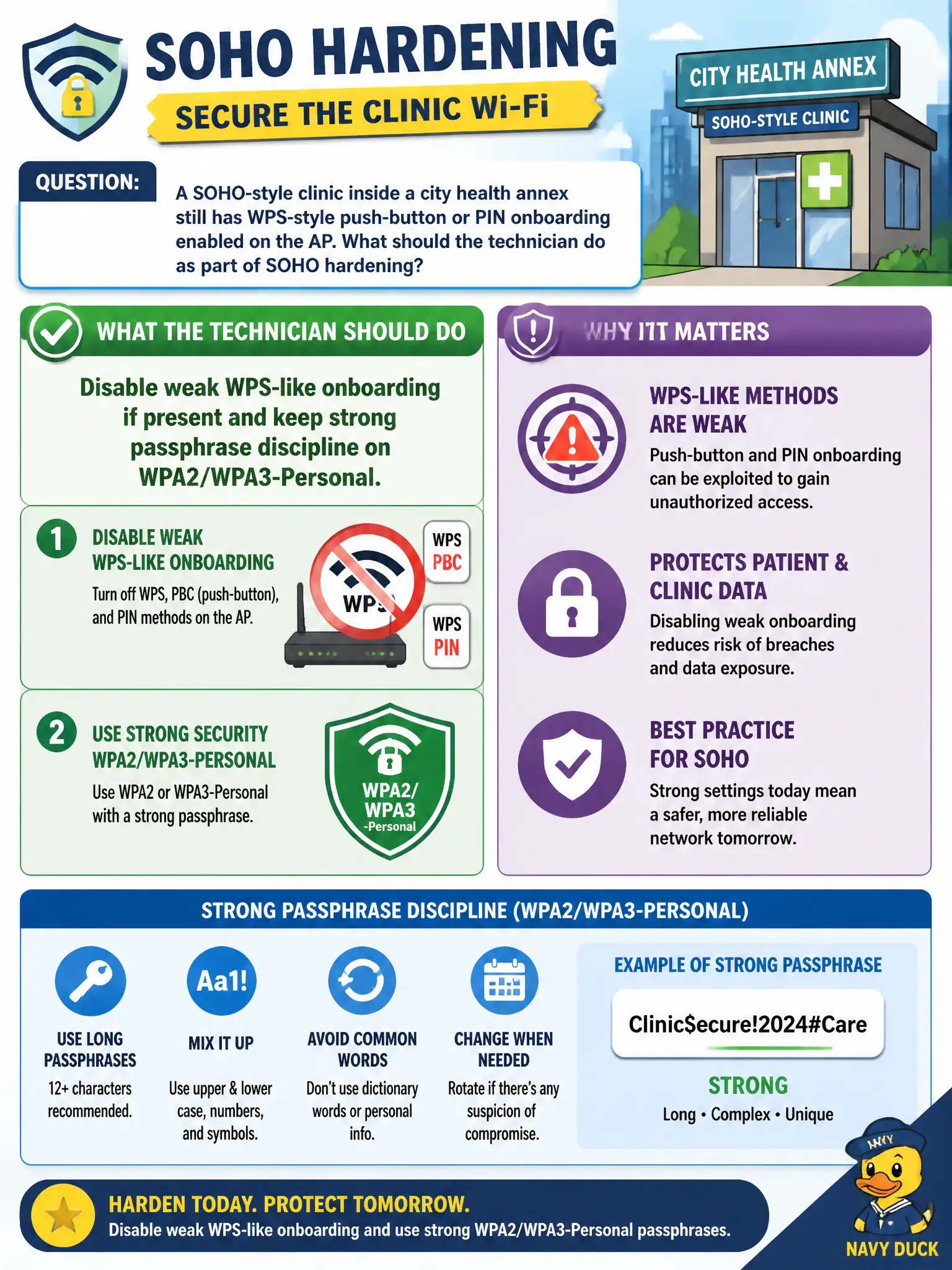
A SOHO-style clinic inside a city health annex still has WPS-style push-button or PIN onboarding enabled on the AP. What should the technician do as part of SOHO hardening?
Select an answer to reveal the explanation.
Short Explanation
WPS-style easy buttons are often the soft underbelly of small-office Wi-Fi. Flip weak onboarding off and stick with a strong Personal passphrase—convenience that hands out the keys is not hardening.
Full Explanation
A SOHO-style clinic inside a city health annex with WPS-style push-button or PIN onboarding still enabled should disable that weak onboarding if present and keep strong passphrase discipline on WPA2/WPA3-Personal. WPS convenience features have a long history as an attack surface for small-office APs. Hardening means removing easy-key disclosure paths while retaining a strong Personal passphrase appropriate to the clinic’s size.
Leaving WPS on forever because convenience always outweighs credential risk fails the hardening objective: convenience that leaks keys is not security. Replacing the strong passphrase with a four-digit PIN reused across all clinics fails by concept: short reused PINs are trivial to abuse and contradict strong Personal practice. Turning security off after onboarding so guests never type a password again fails because it leaves the clinic WLAN unprotected after the convenience window.
Exam caveat: CWTS SOHO hardening routinely includes disabling WPS-like features. Do not confuse onboarding ease with ongoing secure operation.
Operational check: log into the annex AP admin UI; disable WPS/push-button/PIN onboarding; set or confirm a long unique WPA2/WPA3-Personal passphrase; verify new devices join with the passphrase only; note the change in the clinic IT checklist.