
During an investigation at a software company, an analyst finds a detection involving a built-in Windows utility whose file hash shows a clean, trusted vendor signature. What should the analyst inspect next before closing the alert as benign?
Select an answer to reveal the explanation.
Short Explanation
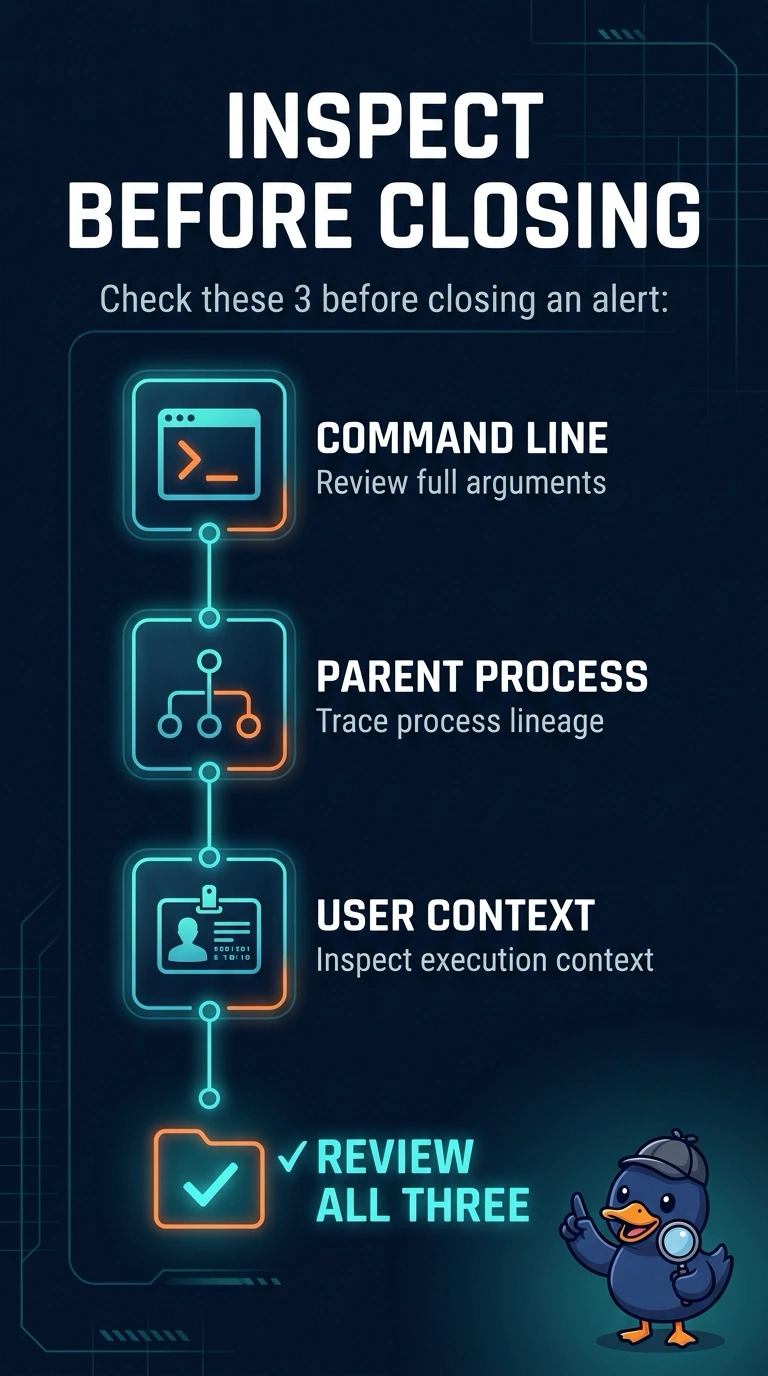
Attackers love hiding behind legitimate Windows tools—a clean file hash just means the hammer is real, not that it is being used to hang a picture. Always check your command-line arguments, parent process, and user context before clearing a built-in utility. The trap is trusting a valid signature as a free pass.
Full Explanation
Living-off-the-land techniques rely on native, digitally signed operating system binaries, which means file-hash reputation checks routinely return clean results even during malicious use. Inspecting "The full command-line arguments, parent process lineage, and user context of the execution" reveals whether the binary performed routine administration or suspicious actions like encoded script execution or remote payload retrieval. Inspecting "The file size of the utility compared against the workstation's total disk capacity" provides no insight into how or why the legitimate binary was invoked. Inspecting "The number of times the utility appears in third-party marketing brochures" is irrelevant to host telemetry and adversary behavior. Inspecting "The alert's severity label alone without reviewing any host execution telemetry" ignores the behavioral evidence required to validate or refute compromise. Caveat: administrative scripts and software updaters also launch native utilities, so check whether the parent process and command line match known IT automation. Operational check: pivot on the process tree and user session in CQL to inspect any child processes or network connections spawned immediately afterward.
Prefer to study offline? Printable PDF study book + test engine ($7.50, unofficial). These questions stay free here.