
A report prints sideways. The application's print setting is landscape, and the user wanted portrait. Which change fixes the pages?
Select an answer to reveal the explanation.
Short Explanation
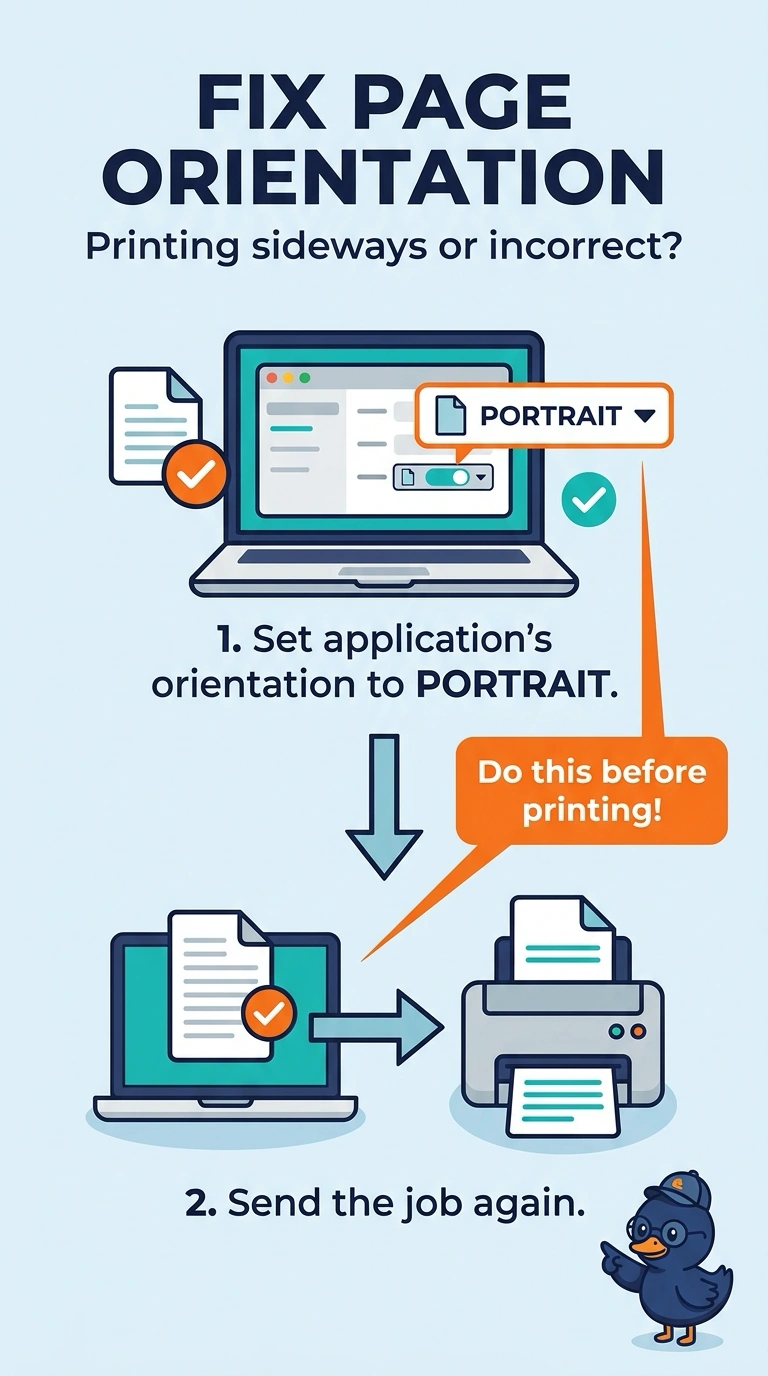
You can fix the sideways report by setting the application's orientation to portrait and sending the job again. The fuser melts toner, the imaging drum transfers the image it receives, and the network cable carries the job; none of them chooses the page layout.
Full Explanation
Orientation is a setting in the print job. The application is set to landscape, so the pages come out sideways; set the application's orientation to portrait and send the job again to fix the report. Replacing the fuser would not help: it melts toner but does not rotate the image. Replacing the imaging drum would not help either: the drum transfers the image it receives and does not choose portrait or landscape. Replacing the network cable would also fail to correct the layout. The cable carries the job, and a good cable does not turn a portrait layout sideways; this job was built as landscape before it was sent. Exam caveat: a printer default can also force landscape if the application is set to follow the printer, so check which setting is actually controlling the job. Here, the application setting is the one named. Practical check: set portrait, print one page, and confirm that the text runs the way the user wanted by comparing it with the sideways copy. Also check that a printer default is not overriding the application's portrait setting. If the sideways job was a one-time miss, save portrait as the user's default.