
After a memory upgrade, a desktop shows the firmware crash screen and beeps. The new module is not fully seated. Which action fits?
Select an answer to reveal the explanation.
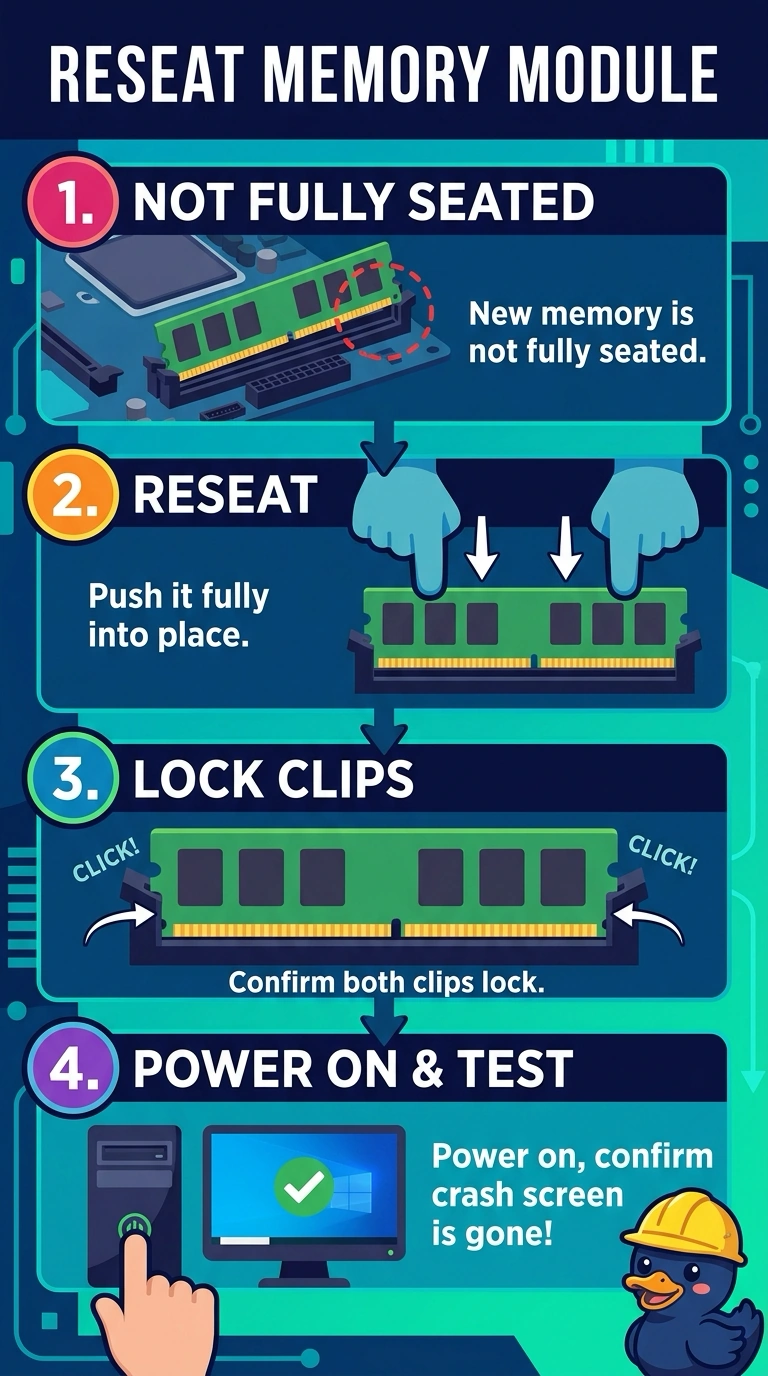
Short Explanation
You’ve found the issue: the loose memory module can stop the firmware before the operating system starts. Reseat it until both clips lock, then power on and check that the crash screen is gone. Reinstalling the operating system, replacing toner, or changing a VPN profile won’t seat the module or fix the firmware beeps.
Full Explanation
A firmware crash screen and beeps occur before the operating system loads. Because the new memory module is not fully seated, it is a classic cause of trouble immediately after an upgrade; reseat it until both clips lock, then power on and check that the crash screen is gone. Reinstalling the operating system cannot resolve the loose connection: the firmware is already stopping the boot, and installing software does not seat the module. Replacing toner is unrelated because toner is a printer supply, not a component of the memory slot. Changing a VPN profile also does not help: it is a remote-access setting used within a running system and cannot stop firmware beeps. Exam caveat: check that the module matches the motherboard’s supported memory generation. A stick from the wrong generation will not become compatible if you push harder. Practical check: power off before pressing on the module, make sure both clips lock, and then power on. Confirm that the firmware reports the new capacity without the crash screen or beep code; do not boot with a clip hanging open. If the crash screen remains even though the clips are locked, try a known-good module in that slot.