
A threat hunter suspects an adversary placed trojanized utilities inside standard Windows system folders across multiple workstations. Which PowerShell approach best identifies unsigned or tampered executables across those endpoints?
Select an answer to reveal the explanation.
Short Explanation
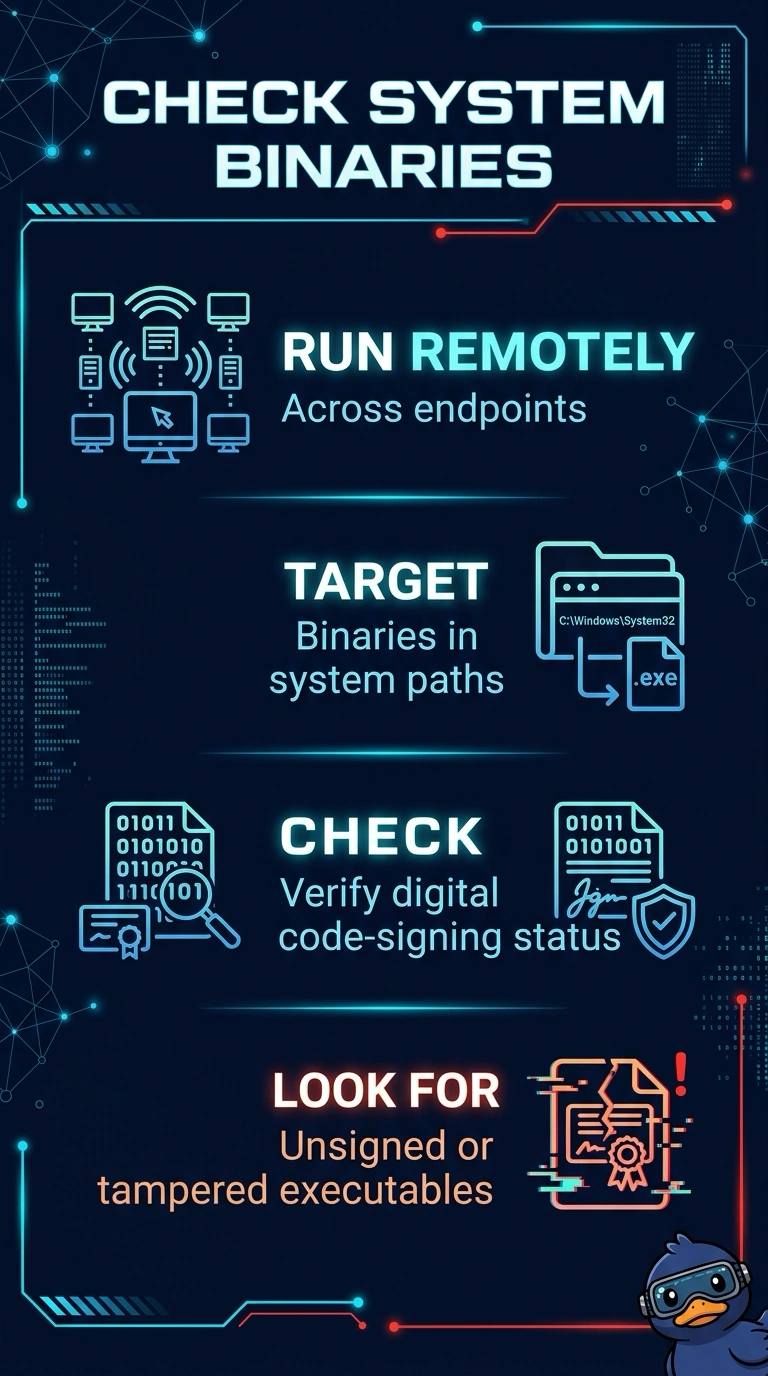
You’re looking for a trustworthy seal, not just a familiar filename: remotely verifying digital signatures can reveal unsigned or tampered executables in system paths. Creation timestamps can be altered, while firewall logs and DNS caches focus on network activity or domains rather than whether a binary is authentic.
Full Explanation
Native Windows utilities in system directories are normally signed by Microsoft or trusted hardware vendors, so cryptographic signature verification provides a high-signal baseline for integrity hunting. Using PowerShell to verify digital code-signing status on binaries in system paths remotely can surface unsigned executables or files with invalid signatures that may indicate tampering. Comparing file creation timestamps against the local workstation system clock is unreliable because adversaries can alter timestamps to resemble legitimate operating system installation dates. Querying the Windows Firewall log for outbound connections on standard ports reveals network traffic after execution; it does not establish whether a specific binary on disk is authentic. Filtering local DNS resolver caches for domains exceeding thirty characters targets potential domain-generation behavior, not executable integrity. Keep in mind that adversaries may abuse legitimately signed third-party utilities or steal valid certificates, so signature checks complement rather than replace behavioral monitoring. As a practical check, compute cryptographic hashes for unsigned binaries found in system directories and compare them with a known-good gold image.