
An incident responder acquires a volatile memory image from a compromised Windows workstation suspected of running a fileless payload. Which investigative step best uncovers hidden processes and active network connections inside that image?
Select an answer to reveal the explanation.
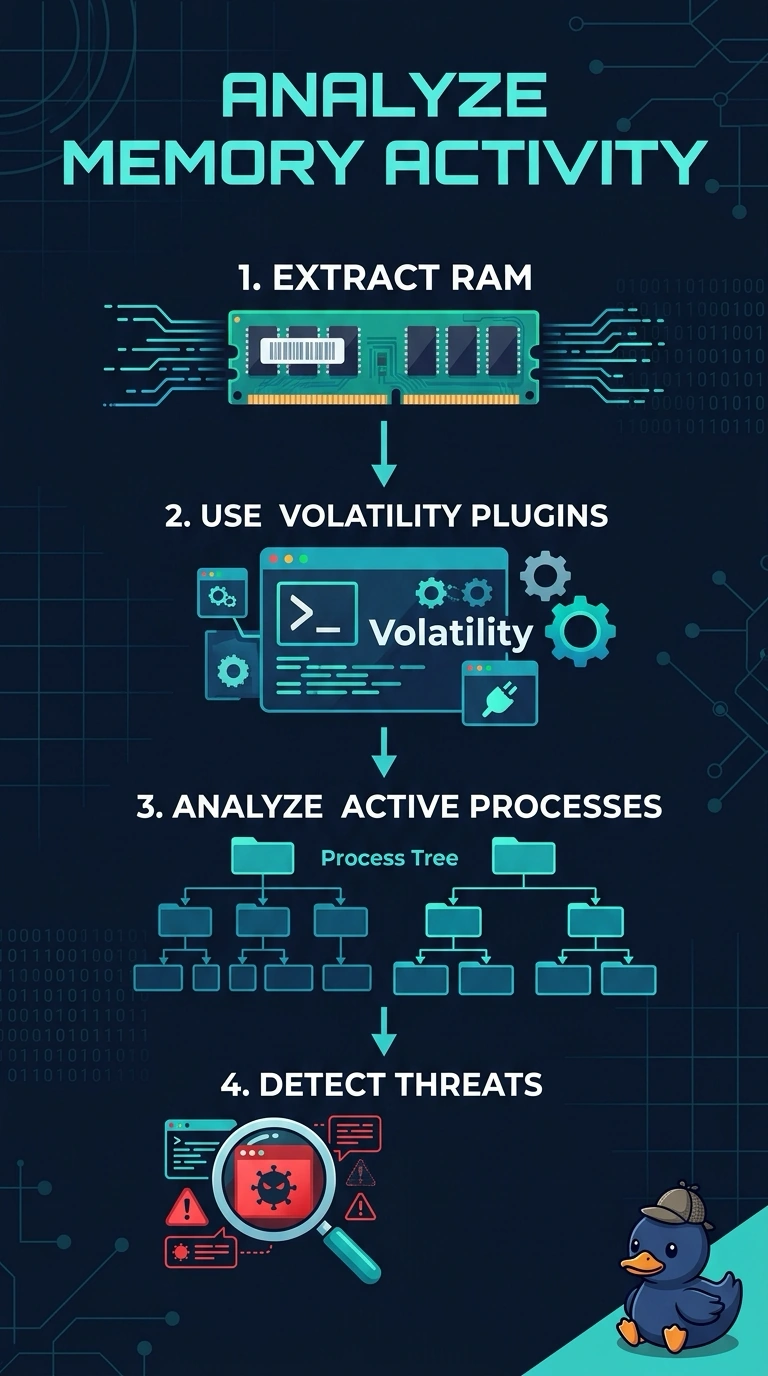
Short Explanation
When malware lives strictly in RAM, disk permissions and external scans won't tell you what was running in memory. Volatility lets you inspect live process trees and sockets directly from the captured image, so don't waste time looking at static or post-reboot artifacts.
Full Explanation
Analyzing active processes with Volatility plugins is correct because Volatility parses operating system kernel structures inside a captured memory image to enumerate running and unlinked processes, loaded DLLs, injected code regions, and open network sockets. Running an external port scan against the host subnet only probes currently listening network services on the live machine and reveals nothing about in-memory process injection. Checking static file permissions on the root volume examines disk access controls rather than volatile runtime state where fileless payloads reside. Inspecting BIOS firmware settings after a hard reboot destroys volatile RAM contents if the image was not already preserved and does not reveal user-space or kernel-space process activity. As a caveat, memory analysis accuracy depends on matching the correct operating system profile or symbol table to the captured image; mismatched symbols can produce incomplete or corrupted output. As an operational check, verify the cryptographic hash of the acquired memory file before loading it into Volatility so chain-of-custody integrity is preserved.