
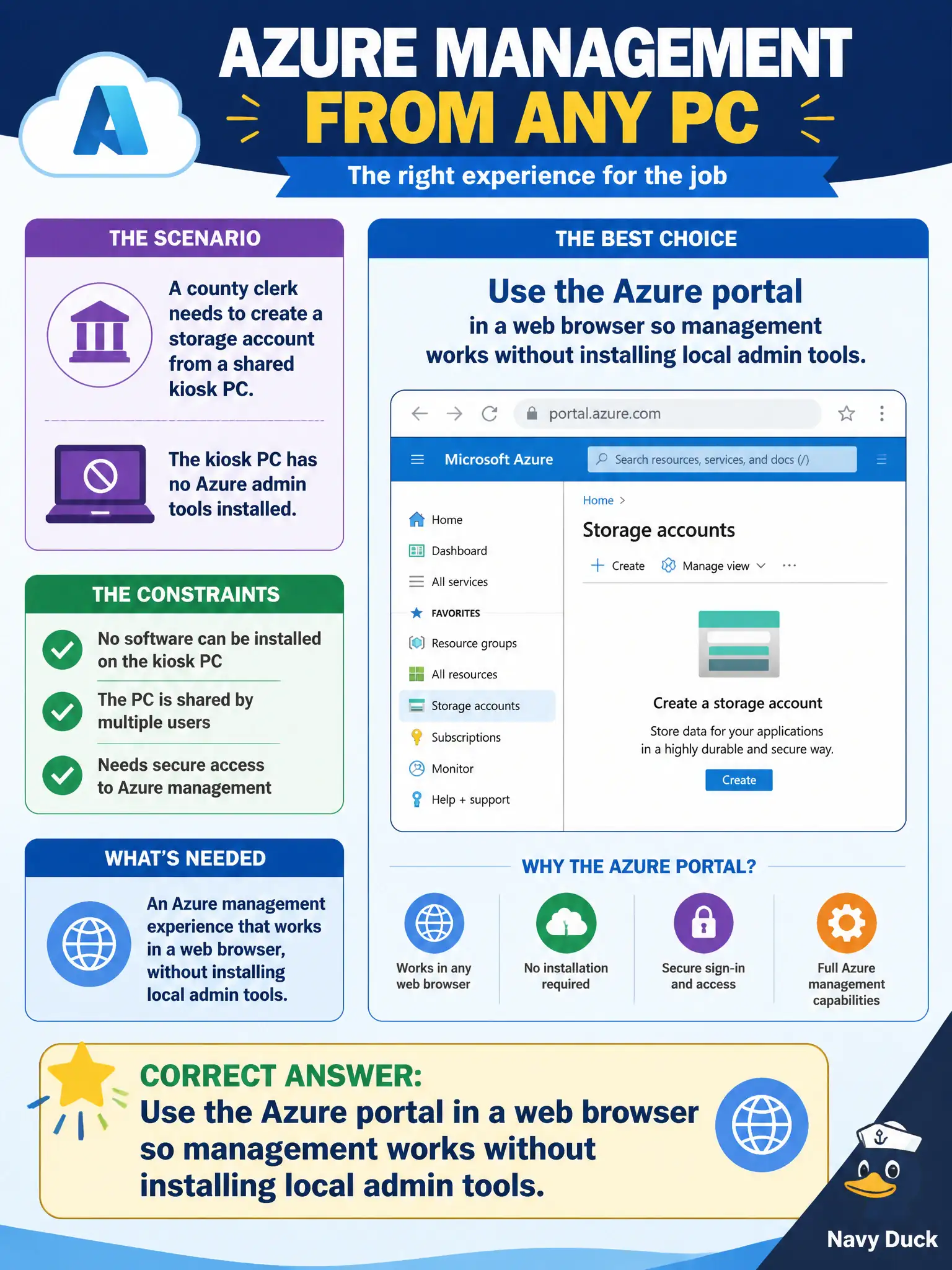
A county clerk needs to create a storage account from a shared kiosk PC that has no Azure admin tools installed. Which Azure management experience fits that constraint?
Select an answer to reveal the explanation.
Short Explanation
Need to manage Azure from a plain PC? The portal is just a website. Sign in from the browser and create or tweak resources without installing a toolbox first.
Full Explanation
The Azure portal is a web-based graphical management experience. From any browser that can reach Azure and authenticate the clerk’s account, staff can create a storage account, set basic settings, and confirm the resource appears in the right subscription and resource group. That fits a shared kiosk with no Azure CLI, Azure PowerShell, or other admin tooling installed: management rides on HTTPS and identity, not on a local install footprint.
Installing Azure Stack Hub on a public kiosk does not solve “no tools installed.” Stack Hub is an on-premises Azure-consistent cloud platform for operators who need Azure APIs in their own datacenter; it is not a lightweight client for everyday citizen-PC administration and would introduce a large private-cloud footprint the scenario never asked for. Requiring a dedicated ExpressRoute circuit before any create confuses private connectivity with management UX. ExpressRoute can improve how traffic reaches Azure, but resource creation still happens through the control plane (portal, CLI, PowerShell, templates)—a circuit is not a prerequisite to open the portal and create a storage account. Treating Azure Arc as a portal replacement misunderstands Arc: Arc projects hybrid and multi-cloud resources into Azure management and governance themes; it does not replace the interactive create-and-browse surface for cloud-native resources on a kiosk.
Exam caveat: browser access still requires appropriate RBAC and, in many cities, Conditional Access or device policies—being able to load the portal URL is not the same as being authorized to create resources. Operational check: from the kiosk, sign in, open Create a resource or the storage account blade, deploy a test account into a non-production resource group, then verify it in the portal’s resource list and with a lightweight CLI/Cloud Shell query if available.