
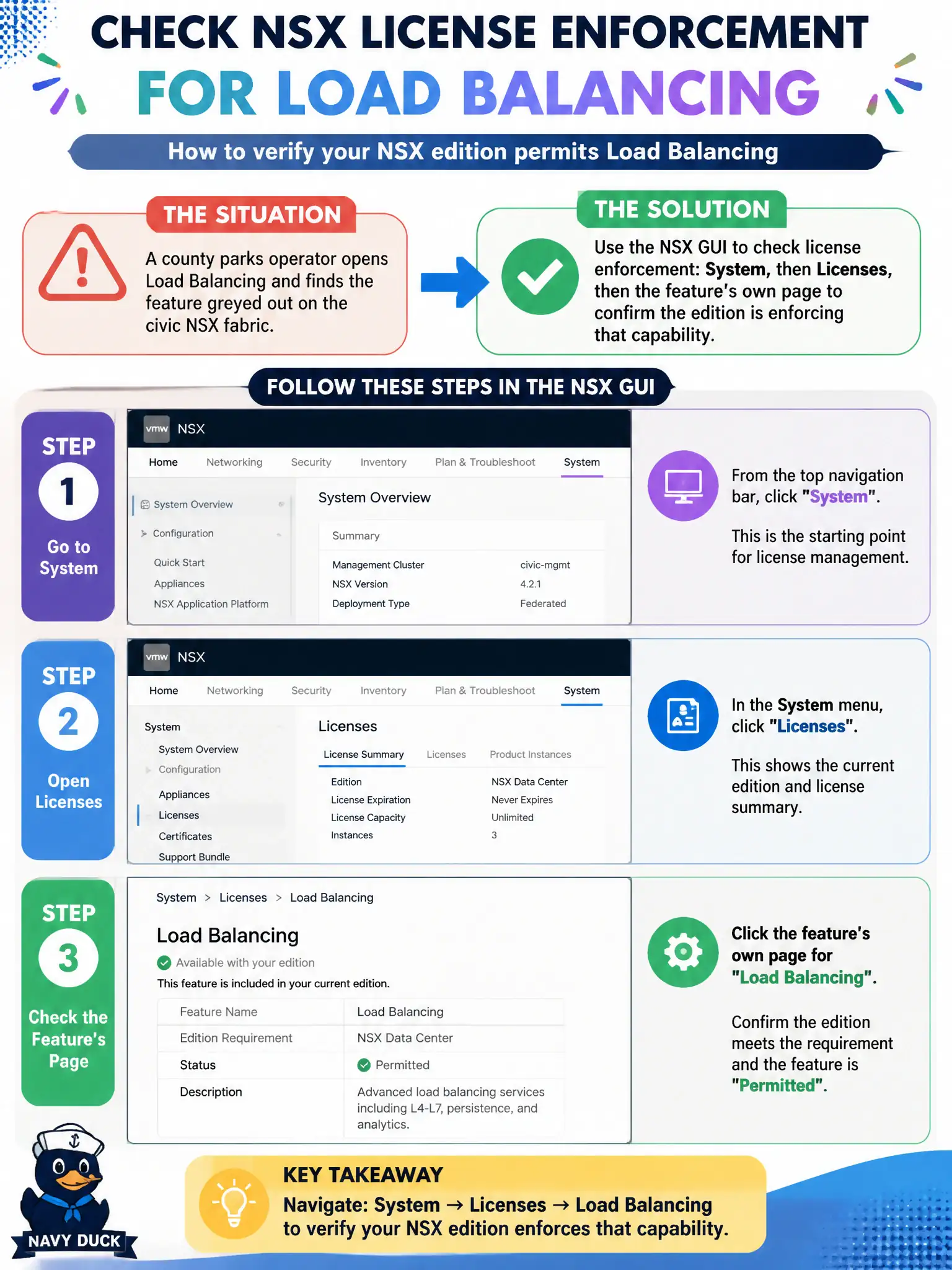
A county parks operator opens Load Balancing and finds the feature greyed out on the civic NSX fabric. How should the operator use the NSX GUI to check license enforcement?
Select an answer to reveal the explanation.
Short Explanation
A greyed civic menu is usually a locked license drawer, not a missing ISO. Check System, then Licenses, then look at the feature page itself. Tags, Gateway Firewall, and the content library do not unlock NSX editions.
Full Explanation
When Load Balancing appears greyed out on the civic NSX fabric, the county parks operator should open System → Licenses and then the feature's own page to confirm the installed edition is enforcing that capability—the GUI path that explains license-locked menus. Tagging Load Balancing under Inventory → Tags does not unlock editions; tags are inventory labels, not license keys. Checking Security → Gateway Firewall is the wrong product area because load balancing is not licensed merely as a firewall service. Publishing an ISO from the vSphere Client content library does not enable NSX feature editions. Exam caveat: greyed menus can also reflect UI mode or missing service enablement, but license enforcement is the first civic check when an edition-gated feature is unavailable. Operational check: open System → Licenses, note the edition and entitlement, open Load Balancing and confirm whether the greyed state matches license limits, then escalate for the correct NSX license if the parks service requires LB. In municipal operations, record the chosen control and the rejected alternatives in the change ticket so future on-call staff understand which failure modes would affect city services. Re-validate after the next maintenance window that the same GUI path and realized state still hold under the current NSX build used by the civic platform team.