
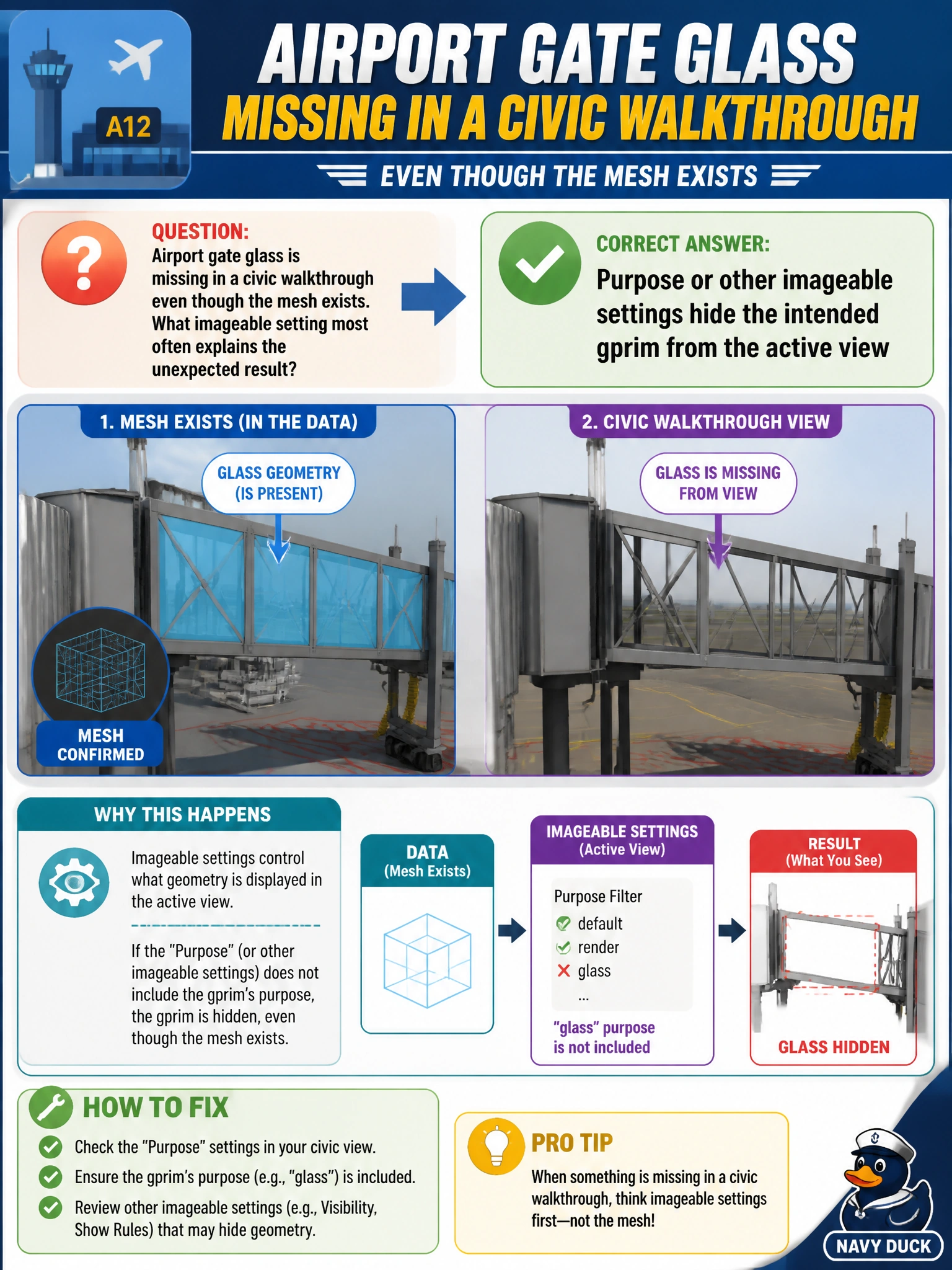
Airport gate glass is missing in a civic walkthrough even though the mesh exists. What imageable setting most often explains the unexpected result?
Select an answer to reveal the explanation.
Short Explanation
If the glass mesh is there but invisible in the walkthrough, check purpose and imageable settings—guide or proxy purpose can hide it from the active view. Hyphens in paths and customData notes do not hide glass by themselves. Aim the viewer at the purpose that should show.
Full Explanation
Airport gate glass that is missing in a civic walkthrough even though the mesh exists is most often explained by purpose or other imageable settings that hide the intended gprim from the active view. Geometry authored with purpose=guide or proxy—or filtered by a viewer that only draws render purpose—will not appear in a public walkthrough that excludes those purposes, even though points, topology, and materials remain on disk. Correcting purpose (or the viewer's purpose mask) restores the glass for the intended audience without re-exporting the mesh.
Using float instead of double for one scalar is a precision/typing detail that does not by itself hide an entire glass gprim from an imageable draw pass. A hyphen in the glass asset path is ordinary path syntax and not a hide mechanism. Storing accession notes in customData documents provenance; it does not substitute for purpose-driven inclusion of municipal geometry.
Exam caveat: Visibility=invisible on a stronger layer can also hide glass; when the stem highlights imageable settings and "mesh exists," prioritize purpose/imageable filtering before rewriting materials. Do not conflate purpose with kind or assetInfo.
Operational check: Confirm the gate-glass prim's purpose and the walkthrough's purpose include mask, temporarily force purpose=render (or expand the mask), verify the glass draws, then standardize purpose conventions for airport assets so field walkthroughs and design reviews see the same gprims.