
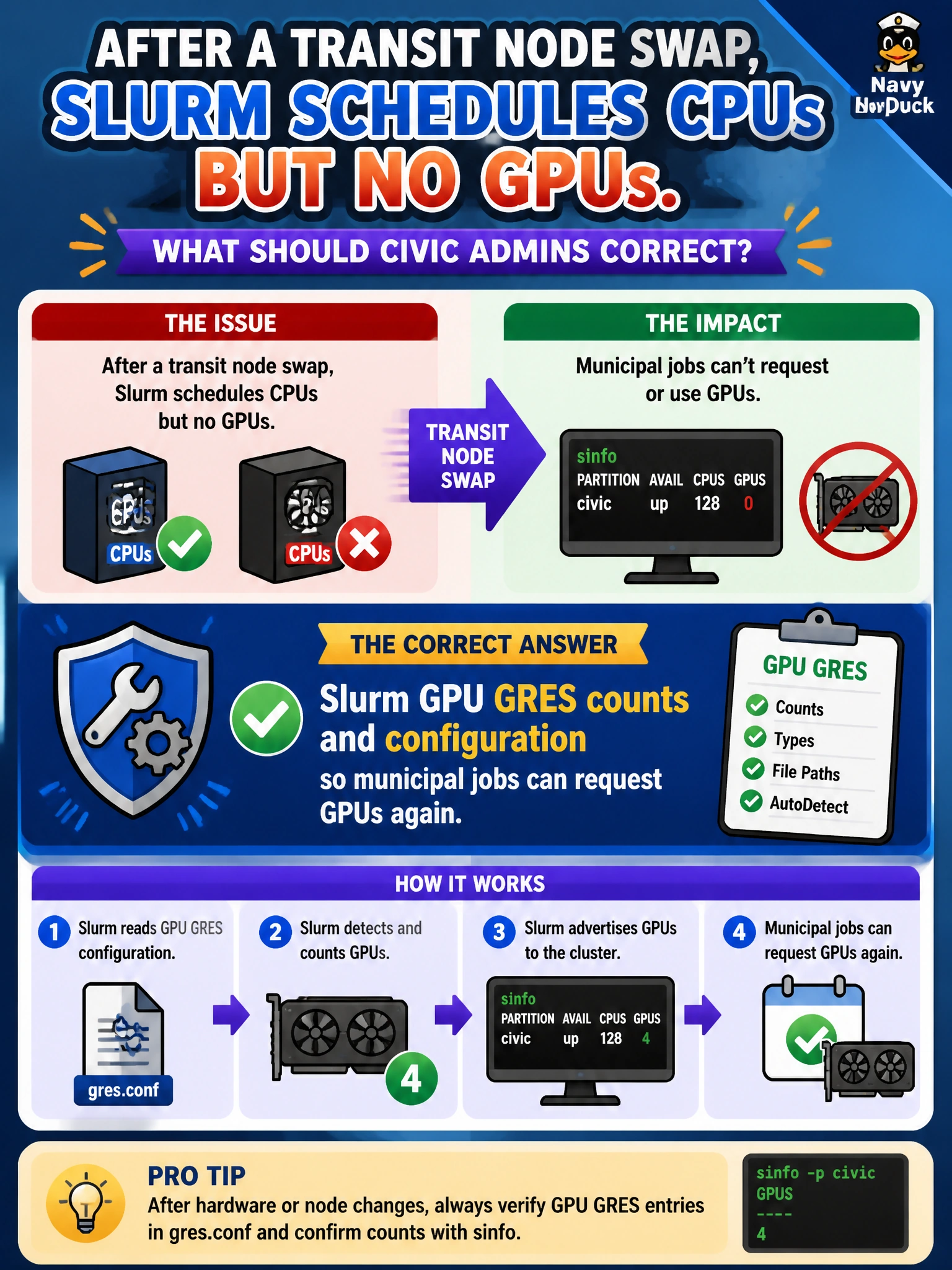
After a transit node swap, Slurm schedules CPUs but no GPUs. What should civic admins correct?
Select an answer to reveal the explanation.
Short Explanation
After a transit-node swap, you can restore GPU scheduling by correcting Slurm’s GRES inventory to match the installed GPUs. Deleting the controller, disabling GPU device files, or forcing every job to request no GPUs would prevent or undermine GPU use rather than fix the configuration.
Full Explanation
Correcting Slurm GPU GRES counts and configuration restores the scheduler’s knowledge of accelerators after a transit-node swap. Slurm matches GPU requests against configured Generic Resources; if the replacement node’s GRES does not match its installed GPUs, CPU work may schedule while GPU requests remain pending or fail to match. Aligning the GRES configuration with the hardware lets municipal jobs request GPUs again. Permanently deleting the Slurm controller fails conceptually because it removes cluster job management instead of repairing GPU inventory. Disabling GPU device files on replacement nodes hides access to the GPUs, so Slurm cannot use them for GPU jobs; it does not resolve a GRES mismatch. Forcing every job to use --gres=none prohibits GPU requests rather than restoring them. Exam caveat: after hardware changes, revalidate node definitions, including GRES and relevant features or topology, and reconfigure or reboot as required by your Slurm version. A successful nvidia-smi check is necessary but does not prove Slurm’s GRES is correct; drain and resume nodes carefully to avoid accepting jobs during the fix. Practical check: confirm the GPUs on the swapped node with nvidia-smi, set matching GRES in the Slurm node configuration, run scontrol reconfigure or the appropriate reload, verify the expected GPU GRES with sinfo or scontrol show node, and submit a small --gres=gpu test job before returning the node to production.