
Tailwind Traders has been targeted by spear-phishing attacks where external senders impersonate the company's CEO and CFO to trick employees into taking fraudulent actions. The admin needs to configure Defender for Office 365 to detect and quarantine emails that impersonate these specific executives. What should the admin configure?
Select an answer to reveal the explanation.
Short Explanation and Infographic
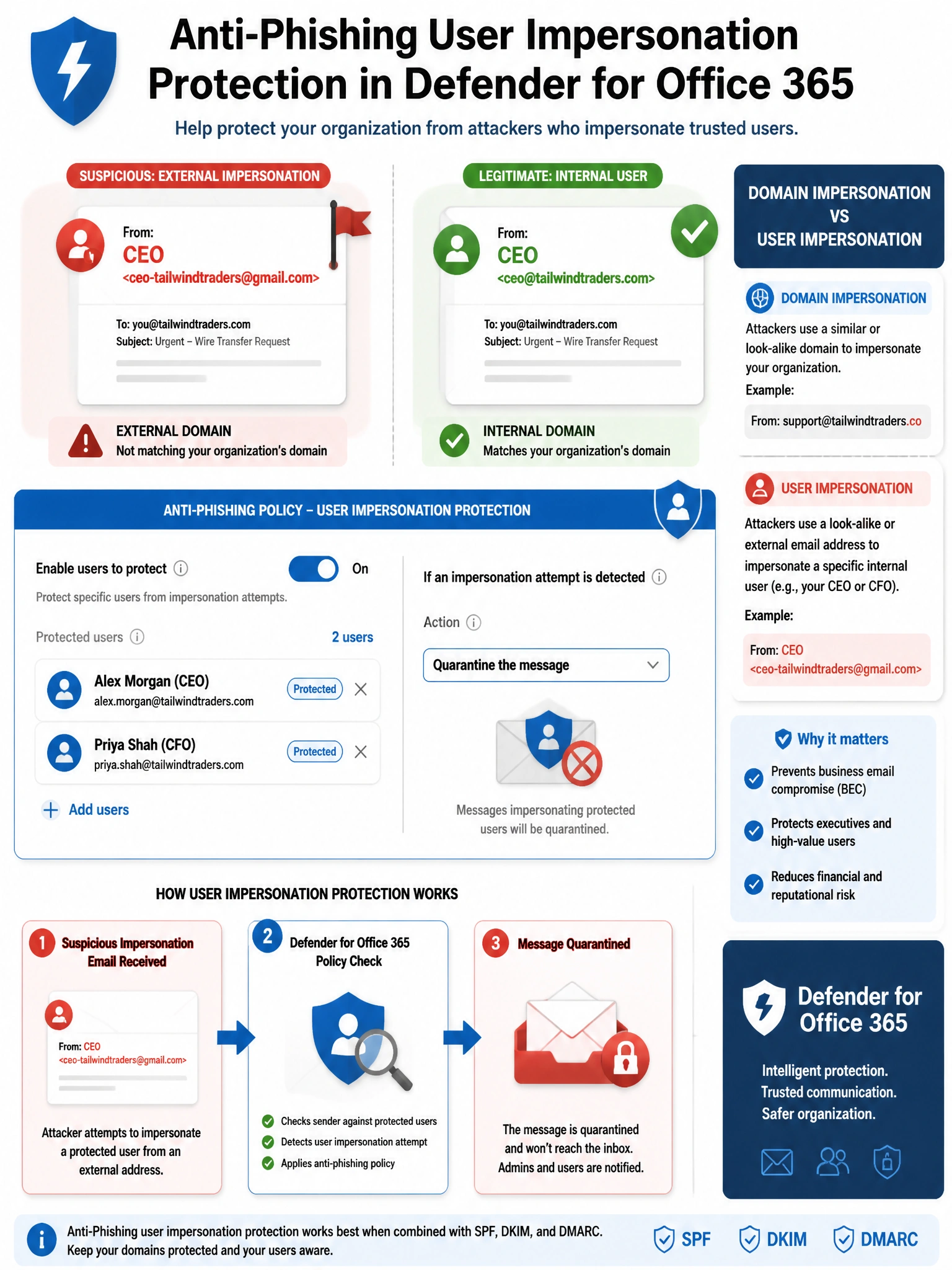
Anti-phishing policies with user impersonation protection are your bodyguards for executive identities. You add the CEO and CFO as 'protected users' in the policy, and Defender starts watching for external emails that spoof their names or similar display names. When detected, it doesn't just flag it — you can send it straight to quarantine. A mail flow rule (option A) is a sledgehammer: it would block legit emails from real executives too.
Full explanation below image
Full Explanation
Microsoft Defender for Office 365 anti-phishing policies include a User Impersonation protection feature specifically designed for this scenario. In the anti-phishing policy (Microsoft 365 Defender > Email & Collaboration > Policies & rules > Threat policies > Anti-phishing), the admin enables 'Enable users to protect' and adds up to 60 specific user accounts (internal or external) as protected users. When an inbound email's sender appears to impersonate one of these protected users — through lookalike display names or similar domain typosquatting — Defender applies the configured action, which can be set to Move to Junk, Redirect, Delete, or Quarantine. Quarantine is the appropriate action for confirmed spear-phishing targeting executives.
Option A (Exchange mail flow rule blocking display names) is both imprecise and counterproductive. A transport rule blocking on display name would also block legitimate emails from the actual CEO and CFO's personal email accounts, partner communications that mention them, and any legitimate external email containing their names. Mail flow rules cannot distinguish between impersonation and legitimate use of a display name.
Option C (Standard preset security policy) applies Defender for Office 365 protections to all users using Microsoft-recommended settings, but preset policies protect all users generically and do not allow adding specific named executives as protected users for targeted impersonation detection. The Standard preset does include anti-phishing, but the targeted user impersonation feature requires a custom anti-phishing policy.
Option D (content filter to Junk Mail) is an anti-spam feature, not an anti-phishing feature. Content filtering looks at message content for spam indicators — it is not designed to detect display name spoofing or impersonation attacks, which often have perfectly normal message content with only a deceptive sender identity.
Exam tip: Anti-phishing policies in Defender for Office 365 have two types of impersonation protection: User impersonation (specific people) and Domain impersonation (specific domains). There is also mailbox intelligence, which learns individual users' communication patterns to detect unusual senders. Know that user impersonation is in Defender for Office 365 Plan 1 and above, not in Exchange Online Protection (EOP) alone.