
Contoso Ltd. wants to display their company logo and a custom background image on the Microsoft 365 sign-in page so employees see a branded login experience. The IT admin needs to configure this. Where in the Microsoft admin portals should the admin go to configure the sign-in page logo and background image?
Select an answer to reveal the explanation.
Short Explanation and Infographic
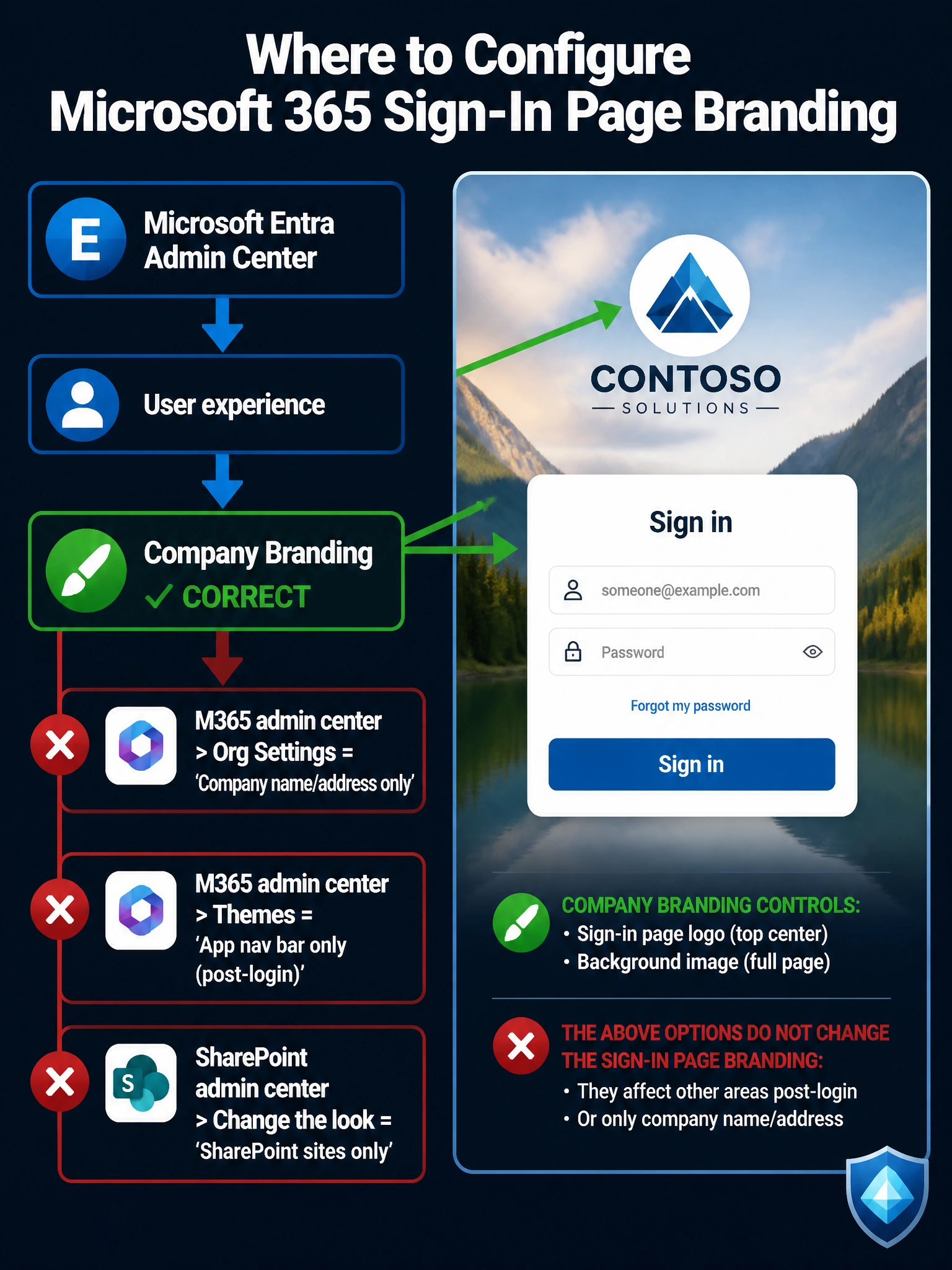
Company branding on the sign-in page lives in the Microsoft Entra admin center — think of it as the 'front door' of your tenant, and Entra is where you decorate that door. The Microsoft 365 admin center handles your internal settings, but the sign-in page is Entra's territory. Head to User experience > Company branding to upload your logo and background.
Full explanation below image
Full Explanation
Correct Answer — B: Microsoft Entra admin center > User experience > Company branding
The Microsoft Entra admin center (formerly Azure Active Directory admin center) is the right place to configure the sign-in page branding because authentication — including the sign-in page — is managed by Microsoft Entra ID. Under User experience > Company branding, admins can upload a banner logo, a background image, a square logo (for the favicon area), a sign-in page text, and even localized branding for different languages. These settings apply to every sign-in experience across Microsoft 365 apps, Azure, and any Entra-integrated application.
Why A is wrong — Microsoft 365 admin center > Settings > Org settings > Organization profile: The Organization profile section lets you set your company's display name, address, phone number, technical contact, and the organization's preferred language. It does NOT control what users see on the sign-in page. This is a common distractor because 'org settings' sounds like it would cover branding, but it's focused on administrative metadata, not the authentication UI.
Why C is wrong — Microsoft 365 admin center > Settings > Microsoft 365 > Themes: The Themes section in the Microsoft 365 admin center controls the top navigation bar appearance inside Microsoft 365 apps (the header color, logo in the nav bar, etc.). This is what employees see AFTER they sign in — not the sign-in page itself. While useful for in-app branding, it has no effect on the pre-authentication sign-in experience.
Why D is wrong — SharePoint admin center > Settings > Change the look: SharePoint's 'Change the look' settings apply to individual SharePoint site collections — things like the site header, theme colors, and site logo on SharePoint pages. This has nothing to do with the Microsoft 365 sign-in page or tenant-level authentication branding.
Exam Tip: Remember the layered branding model: Entra admin center = sign-in page (pre-auth); Microsoft 365 admin center Themes = nav bar inside apps (post-auth); SharePoint admin center = SharePoint site appearance. The AB-650 exam may test this distinction with multiple plausible admin center options — always ask 'is this about signing IN or using the app after sign-in?'