
Northwind Traders has accumulated over 8,000 Microsoft 365 groups over the past three years. Many are tied to completed projects and appear to be abandoned — no owner activity, no content updates. The IT governance team wants groups to automatically expire and be soft-deleted after 180 days of inactivity, with group owners receiving email notifications at 30, 15, and 1 day before expiration so they can renew active groups. What should the administrator configure?
Select an answer to reveal the explanation.
Short Explanation
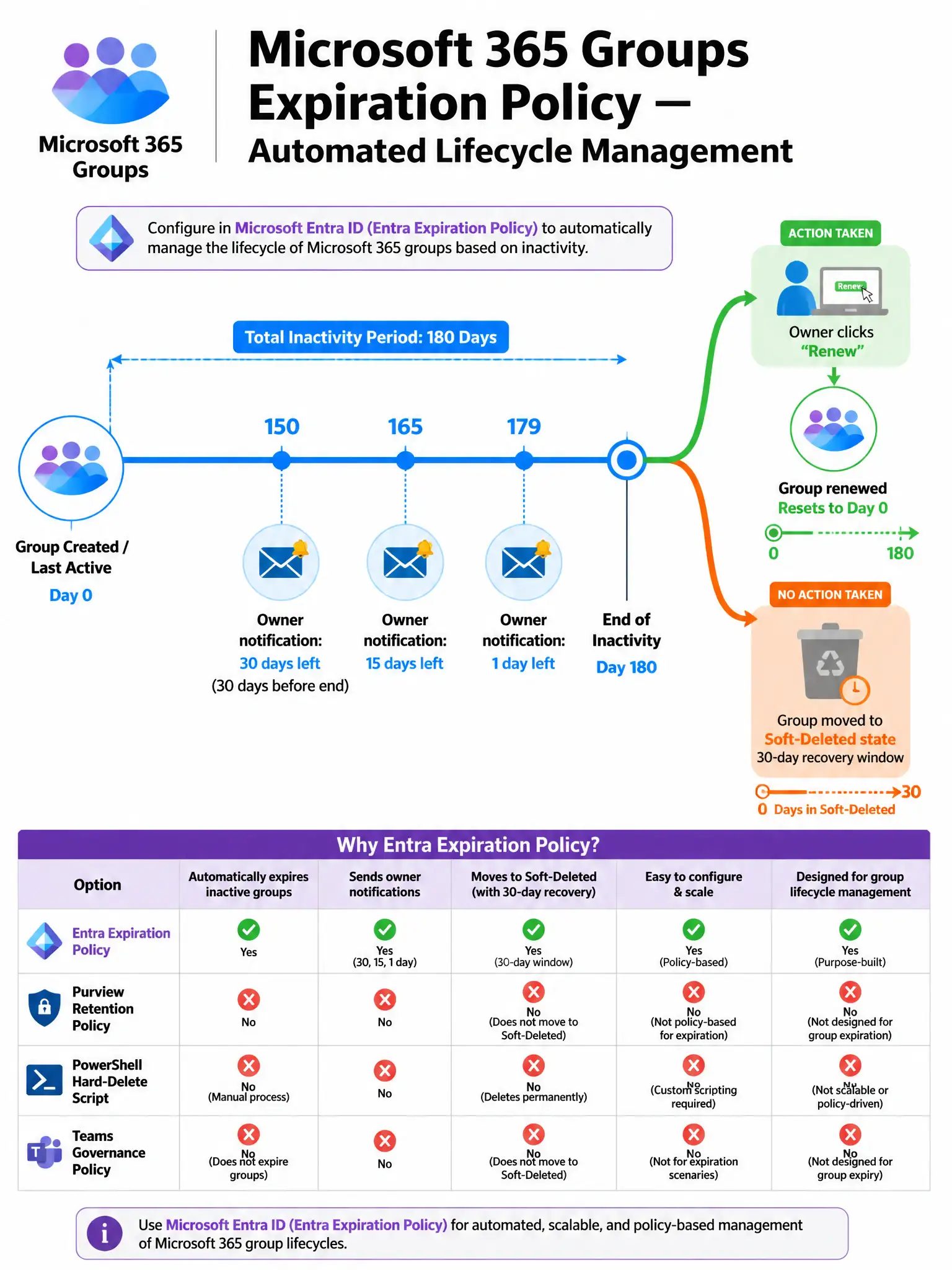
Think of group expiration in Microsoft Entra ID as a library book with a due date — if nobody renews it, it goes back on the shelf as a soft-deleted group, recoverable for 30 days. You configure the built-in Microsoft 365 Groups expiration policy with a 180-day lifetime, and it handles the countdown, owner renewal emails, and soft-delete automatically. You don't need scripts, Purview retention, or Teams channel policies.
Full Explanation
The Microsoft 365 Groups expiration policy in Microsoft Entra ID is the right configuration for this governance scenario. When configured, it sets a group lifetime, such as 180 days, that resets whenever meaningful activity occurs in the group, including messages and file edits. As the expiration date approaches, Microsoft Entra automatically emails the group owners at 30, 15, and 1 day before expiration with a one-click renewal link. If no owner renews, the group is soft-deleted, not permanently deleted, and can be recovered by an administrator for up to 30 days. This is the correct, built-in, low-maintenance solution.
The retention policy approach targeting Microsoft 365 Groups with a 180-day retention period is wrong because Microsoft Purview retention policies control how long content, such as emails, files, and messages, is retained or deleted for compliance purposes. The retention policy on a Microsoft 365 Group keeps the content for 180 days; it does not delete the group itself or notify owners. Retention and group lifecycle management are entirely separate governance concerns.
The scheduled PowerShell script approach that queries all Microsoft 365 groups, identifies groups with no activity for 180 days, and permanently deletes them using Remove-MgGroup is wrong for two important reasons. First, it uses Remove-MgGroup, which permanently, or hard, deletes the group, so there is no soft-delete recovery window. Permanent deletion without warning or owner input violates basic governance standards and could destroy active groups. Second, a manual script adds maintenance burden, error risk, and lacks the built-in owner notification and renewal workflow that the native expiration policy provides. Using a manual script when a native feature exists is always suboptimal on Microsoft exams.
The Teams governance policy approach in the Teams admin center that sets a 180-day inactivity limit on all Teams channels is wrong because Teams admin center channel governance policies manage Teams-specific behaviors, such as who can create channels and channel moderation, but do not control the lifecycle of the underlying Microsoft 365 group. Teams channels and Microsoft 365 group expiration are managed at different layers, because group expiration lives in Microsoft Entra, not Teams admin center.
Exam tip: For Microsoft 365 group lifecycle management — expiration, renewal, naming policies, creation restrictions — always look to Microsoft Entra ID, specifically the Microsoft 365 Groups settings blade. Purview handles content compliance, and Teams admin center handles Teams channel behavior. Don't mix up the admin portals.