
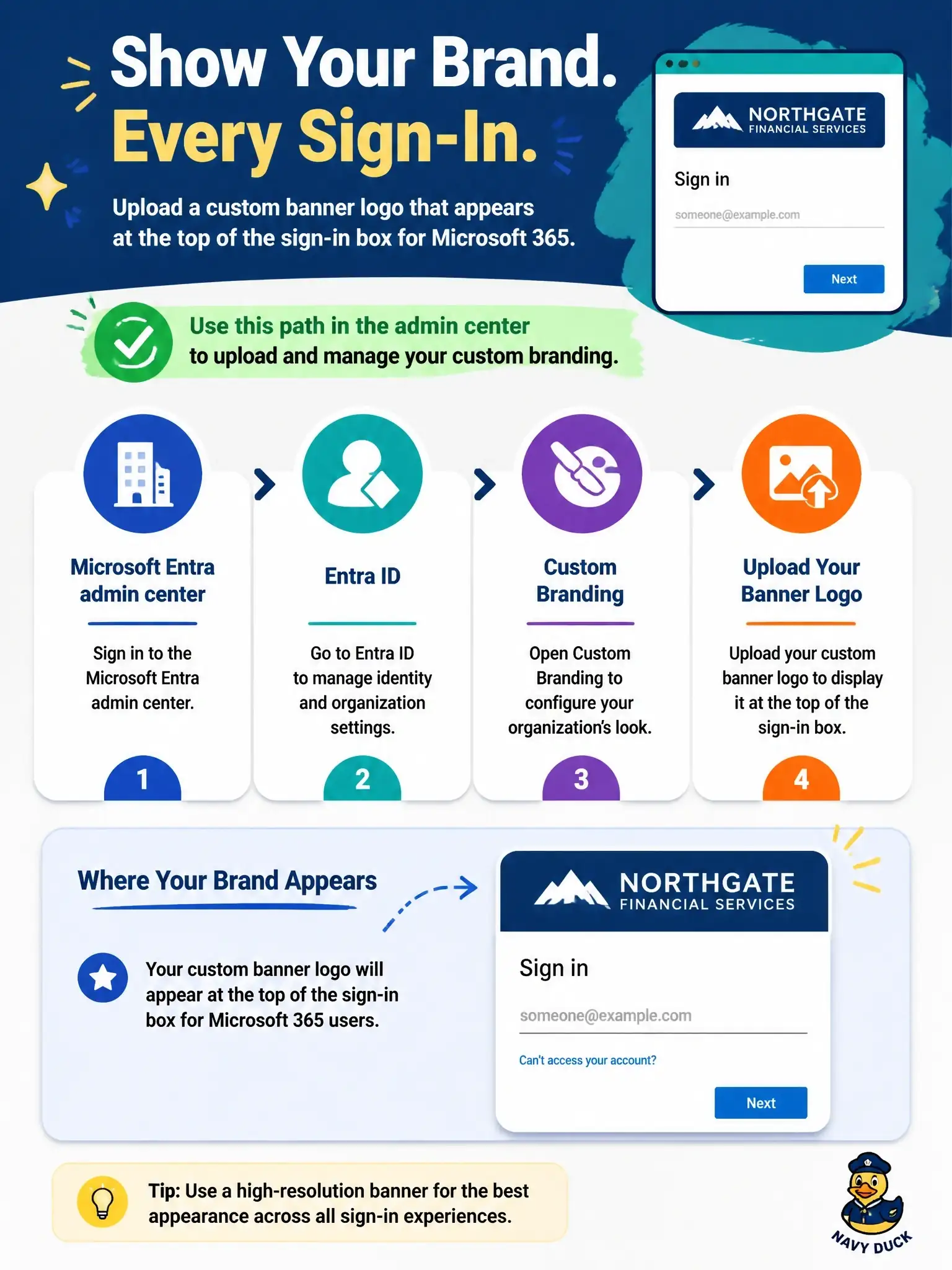
Northgate Financial Services is rolling out a new brand identity. The IT admin must upload a custom banner logo that appears at the top of the sign-in box when users sign in to Microsoft 365. Which location should the admin use?
Select an answer to reveal the explanation.
Short Explanation
The sign-in box is the front door of your tenant, and Microsoft Entra ID owns that door. You upload the banner logo under Entra ID > Custom Branding, and it shows at the top of the sign-in box before anyone's even authenticated. Custom themes in the Microsoft 365 admin center only dress up the header users see after they're signed in.
Full Explanation
Sign-in page branding belongs to the identity layer, because Microsoft Entra ID renders the sign-in experience before a user reaches any Microsoft 365 app. In the Microsoft Entra admin center, an Organizational Branding Administrator browses to Entra ID > Custom Branding and edits the default sign-in experience. The Sign-in form section holds the banner logo, a short, wide PNG or JPG of 245x36 pixels that appears at the top of the sign-in box, alongside square logos, sign-in page text and username hint text. The same wizard also sets the background image, page background color, favicon, header and footer. Custom themes under the Microsoft 365 admin center Org settings controls the logo and navigation bar colors in the suite header shown after sign-in, so it cannot place a logo inside the sign-in box. Organization information holds contact details such as address and phone number and has no branding upload. Teams branding in the Teams admin center customizes meeting experiences and has no effect on tenant sign-in pages. Exam caveat: sign-in branding needs a license such as Microsoft Entra ID P1 or P2 or Microsoft 365 Business Standard, and it does not appear for personal Microsoft accounts. Operational check: open an InPrivate browser window, start a Microsoft 365 sign-in, enter a tenant username, and confirm the new banner logo appears at the top of the sign-in box.