
An organization wants to deploy a Copilot Studio agent to Microsoft Teams so that employees can interact with it directly in their Teams client. The agent must appear in the Teams app store for the corporate tenant and should be installable by employees without requiring them to navigate to an external website. Which deployment step must the developer complete after publishing the agent in Copilot Studio?
Select an answer to reveal the explanation.
Short Explanation and Infographic
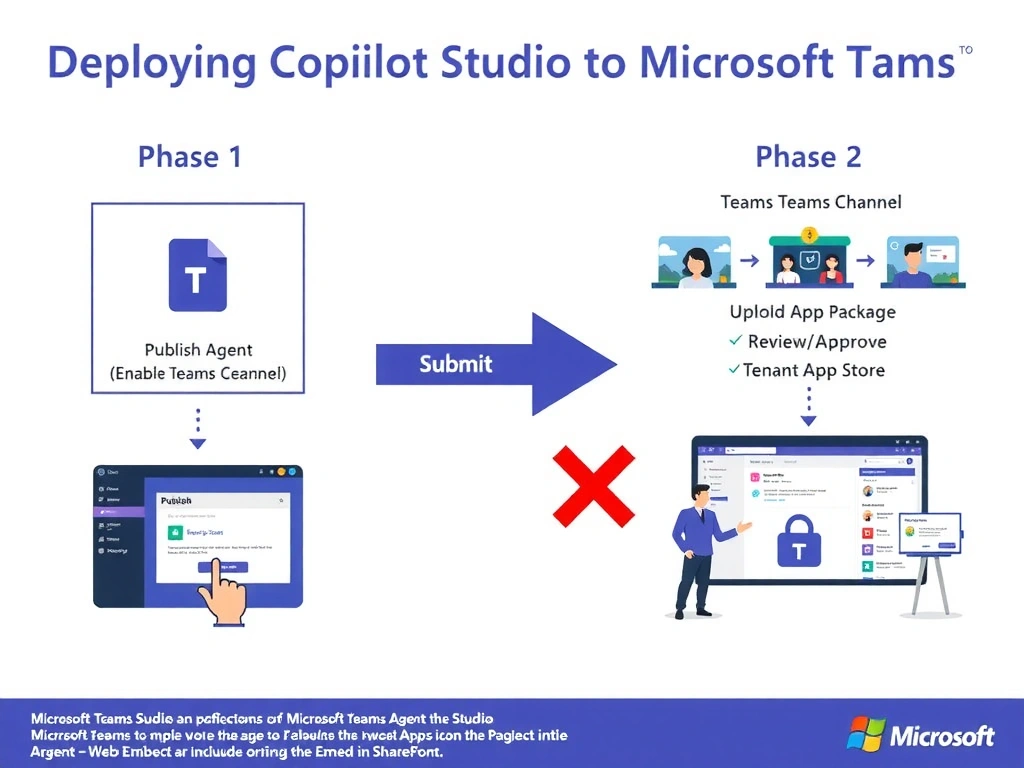
Publishing to Teams is like getting your app into a corporate app store—you flip the Teams channel switch in Copilot Studio, then an admin approves it in Teams Admin Center so everyone can install it natively.
Full explanation below image
Full Explanation
Deploying a Copilot Studio agent to Microsoft Teams requires two coordinated steps: first, enabling the Teams channel within Copilot Studio to generate the Teams app package, and second, publishing that app package through the Microsoft Teams Admin Center so it appears in the tenant's internal app store and can be installed by employees.
Option B is correct because it captures both critical steps: enabling the Teams channel in Copilot Studio (which generates the necessary Teams app manifest and package) and submitting it to Teams Admin Center (which makes it available tenant-wide without requiring employees to sideload anything manually).
Option A is wrong because web embed code creates a web-based widget intended for websites or SharePoint pages, not a native Teams app experience. While SharePoint is accessible within Teams, this is not the same as a Teams-native app that appears in the Teams app store or can be pinned to the Teams left rail.
Option C is wrong because sending a URL via Power Automate only notifies employees of an external link. It does not create a native Teams app integration—users would be redirected to a browser rather than interacting with the agent inside Teams.
Option D is wrong because manually uploading a manifest to each individual user's Teams client is not how tenant-wide deployment works. Sideloading is a development/testing technique for individual users, not a production deployment method. The correct production path is through Teams Admin Center for organizational distribution.
Exam tip: The Teams channel deployment path in Copilot Studio is: Publish agent → Enable Teams channel → Download app package (or use the Copilot Studio-generated one) → Teams Admin Center → Manage apps → Upload/approve for tenant. Know both the Copilot Studio side and the Teams Admin Center side of this workflow.