
A Power Platform Pipelines deployment of an updated Copilot Studio agent to production causes unexpected agent behavior. The previous version was working correctly. What is the recommended recovery approach using Power Platform's built-in capabilities?
Select an answer to reveal the explanation.
Short Explanation and Infographic
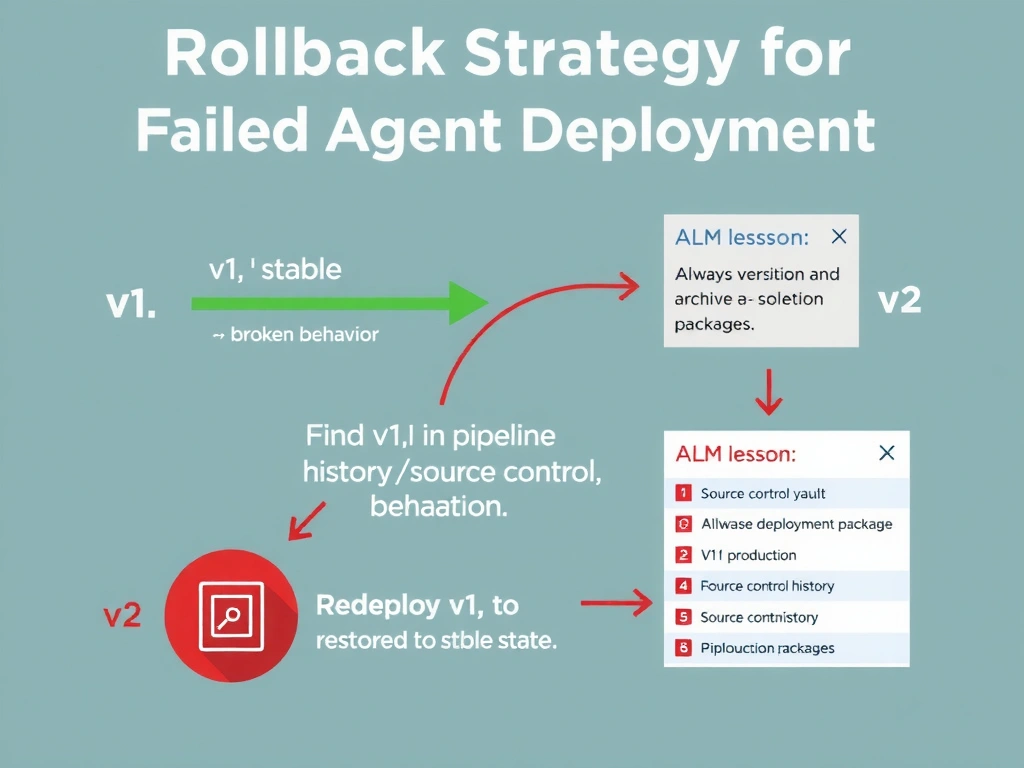
Rollback in Power Platform is a re-deploy — you redeploy the known-good previous version over the broken current one. Power Platform Pipelines keeps deployment history, or you can redeploy from the solution stored in your source control system. The managed solution import overwrites the current state.
Full explanation below image
Full Explanation
Power Platform does not have a built-in one-click 'rollback' button in the traditional sense. However, recovery from a bad deployment follows a straightforward process: identify the last known-good solution version (from pipeline deployment history, source control like Azure DevOps/GitHub, or a backup export), and redeploy that version to production. Importing a managed solution into an environment that already has that solution updates/overwrites the components with the imported version.
If Power Platform Pipelines keeps run history with artifacts, you can redeploy a previous pipeline run. Alternatively, teams should maintain solution version artifacts in source control as part of their ALM strategy — this is where the 'previous version' comes from.
Option A (rebuild from memory) — manual, error-prone, and unacceptable for production recovery.
Option C (delete solution + wait) — deleting a managed solution removes all its components from production, leaving the agent unavailable until the next deployment. This is worse than the broken state in most scenarios.
Option D ('Auto-restore' feature) — no such feature exists in Copilot Studio.
Exam ALM lesson: rollback = redeploy previous version. This reinforces the importance of versioning solution packages and maintaining deployment artifacts. Without stored previous versions, rollback is impossible.