
You have built a Copilot Studio agent and now need to include it in a Power Platform solution so it can be deployed from development to test to production via pipelines. What must you do to include the agent in the solution?
Select an answer to reveal the explanation.
Short Explanation and Infographic
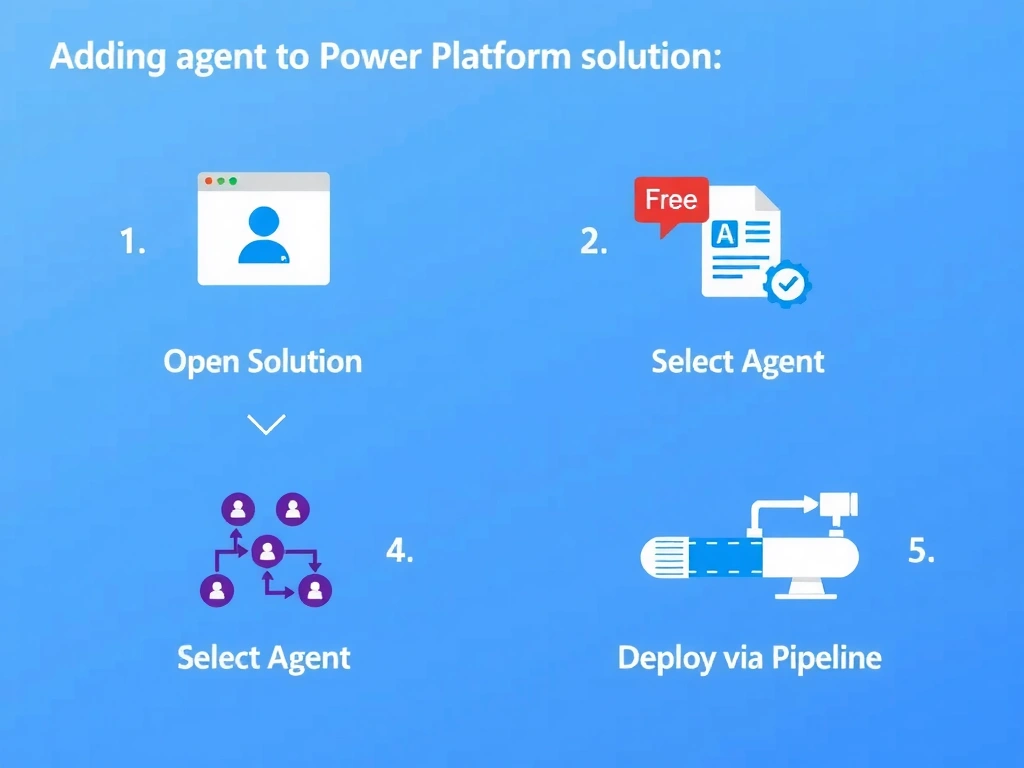
Solutions in Power Platform are like shipping containers — you decide what goes in. Using 'Add existing' in the solution editor, you pick your agent from the environment and load it into the solution manifest. From that point on, the solution tracks and packages it for deployment.
Full explanation below image
Full Explanation
Power Platform solutions are containers for application components (agents, flows, tables, connectors, environment variables, etc.) that enable structured lifecycle management. An agent created outside a solution context lives in the environment but is not tracked for deployment.
To include an existing agent, you open the solution in the maker portal (make.powerapps.com), click 'Add existing', and select 'Chatbot' or 'Copilot' (the term varies by portal version). The agent appears as a solution component and is included when the solution is exported or deployed via Power Platform Pipelines.
Option A (JSON export + manual attachment) — Copilot Studio does not use raw JSON file exports for solution packaging. The solution framework handles serialization and packaging automatically.
Option C (automatic inclusion) — components are not automatically in solutions. Solutions are opt-in containers. An agent is only in a solution if explicitly added or created within the solution context.
Option D (recreate from scratch) — unnecessary and loses all existing authoring work. 'Add existing' is the correct path.
Also note: related components (environment variables, custom connectors referenced by the agent) should also be added to the solution to ensure complete, deployable packages. Missing dependencies cause deployment failures.