
A financial services company is building a Copilot Studio agent for internal employees only. The agent must verify that users are authenticated corporate employees before allowing them to query sensitive HR data, and employees should not be prompted to sign in separately—they are already signed in via their corporate Azure AD credentials. Which authentication configuration should the developer select?
Select an answer to reveal the explanation.
Short Explanation
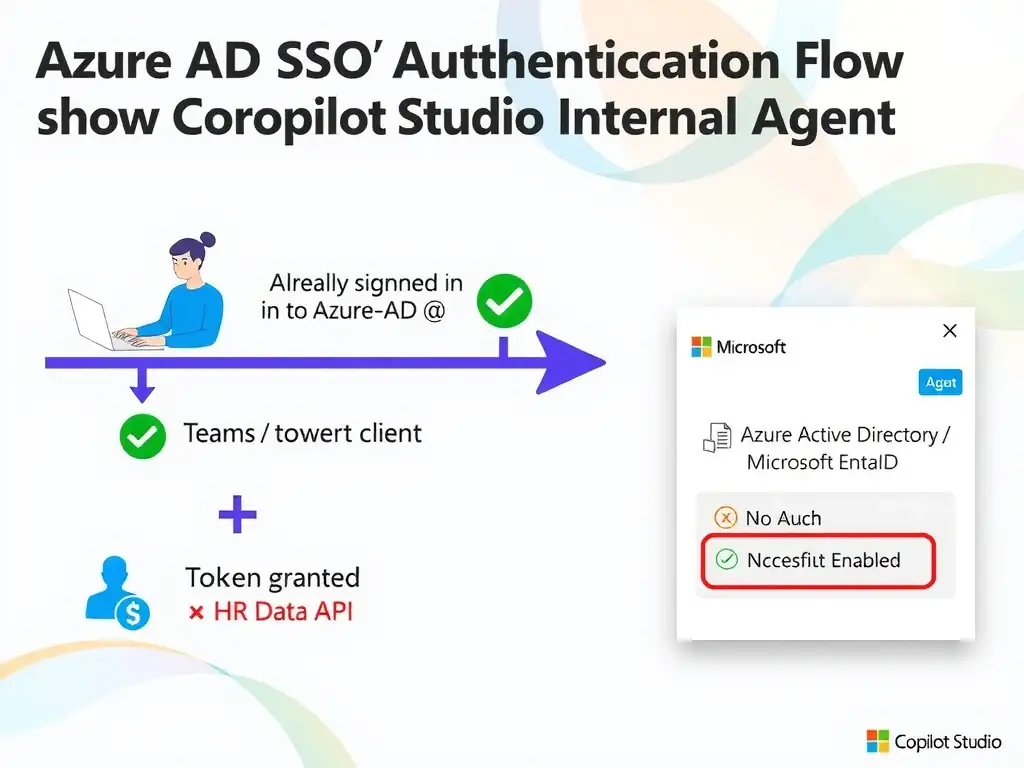
Think of SSO as a hotel key card that already has your floor unlocked—you don’t stop at the front desk again just to visit HR. Configure the agent with Azure Active Directory or Microsoft Entra ID and enable SSO so it silently uses the employee’s existing corporate session. You get strong authentication without another sign-in prompt.
Full Explanation
Copilot Studio supports several authentication modes. For internal employee-facing agents where users already have an active Azure Active Directory (Microsoft Entra ID) corporate session, Single Sign-On (SSO) is the correct choice. SSO passes the user's existing identity token from their corporate session to the agent transparently, eliminating redundant login prompts while still providing strong authentication. The correct configuration is the one that configures the agent authentication to Azure Active Directory (or Microsoft Entra ID) with SSO enabled so employees are silently authenticated using their existing corporate session. This allows the Teams or browser client to silently pass the user's corporate token to the agent. The agent can then use this token to call secure APIs (such as HR data connectors) on the user's behalf without requiring the user to re-authenticate. The no-authentication configuration with IP allowlist rules is wrong because 'No authentication' provides zero identity verification at the application layer. IP allowlisting is a network-level control that does not identify individual users and cannot be used to personalize access to sensitive data like HR records. The custom Azure Active Directory app registration with client credentials configuration is wrong because client credentials uses a service principal (app identity), not a user identity. This would authenticate the application itself rather than the individual employee, and all users would appear as the same service account—making user-level data access impossible. The 'Authenticate with Microsoft' configuration that enables 'Require users to sign in' is wrong because manual prompting defeats the SSO goal. The scenario explicitly states employees should not be prompted to sign in separately. This configuration creates friction and a worse user experience when SSO is available. Exam tip: For internal agents deployed via Microsoft Teams where users are already signed in to their corporate tenant, SSO is the answer. It combines security (real Azure Active Directory identity) with seamless UX (no extra login). Watch for 'employees already signed in'—that phrase is the SSO signal.