
Priya is a Copilot Studio developer at Northstar Insurance. Her manager wants the company's claims agent to surface relevant SharePoint documents when a customer asks about policy coverage. Priya knows there is a prebuilt Copilot connector for SharePoint available in the connector gallery. Which sequence of steps should Priya follow to add this connector to the agent?
Select an answer to reveal the explanation.
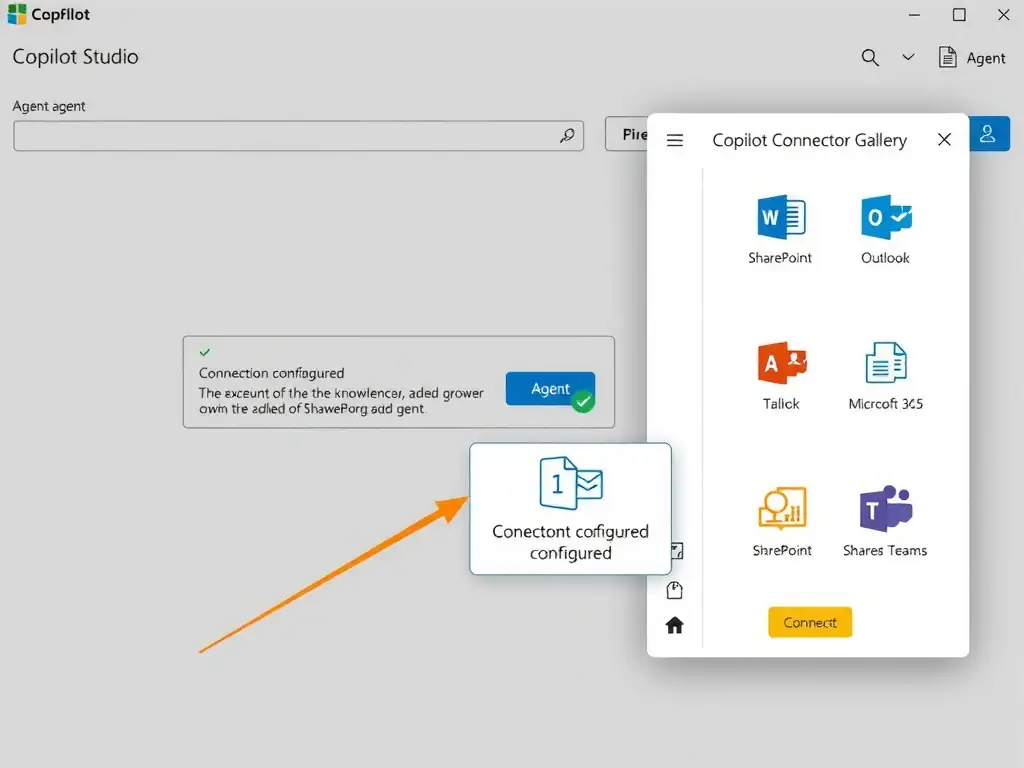
Short Explanation
Think of a prebuilt Copilot connector like a plug on the wall — it's already wired up, you just push it in. You go straight to the agent's connector gallery inside Copilot Studio, pick SharePoint, and connect it — no Power Automate flow or custom connector needed for a prebuilt option.
Full Explanation
Copilot connectors are prebuilt integration packages that expose specific data sources or services to a Copilot Studio agent without requiring any custom development. They are listed in the Copilot connector gallery, which is accessible directly inside Copilot Studio under the agent's Knowledge or Actions configuration area.
The correct sequence is to open the agent in Copilot Studio, navigate to the Knowledge or Actions area, select 'Add a connector', browse the Copilot connector gallery, choose the SharePoint connector, configure the required connection, and save. This follows the workflow Microsoft prescribes for prebuilt Copilot connectors: open the agent in Copilot Studio, navigate to Add a connector, browse the gallery, select SharePoint, authenticate the connection (typically via OAuth against Microsoft 365), and save. The connector then becomes available for the agent to invoke when the user asks a relevant question.
The approach that opens Power Automate, creates a new cloud flow, adds the SharePoint connector as a step, publishes the flow, and imports it into Copilot Studio as a plugin action is incorrect because building a Power Automate cloud flow is the workflow for custom actions, not for adding a prebuilt Copilot connector. Cloud flows are valuable when you need to orchestrate multi-step logic or call non-gallery services, but they are an unnecessary detour when a prebuilt connector already exists.
The approach that downloads the SharePoint connector package from the Microsoft AppSource marketplace, uploads it to the Power Platform admin center, and assigns it to the agent from environment settings is incorrect because Copilot connectors are not distributed through AppSource as downloadable packages. AppSource is used for apps and add-ins, not for individual connector registrations. The connector gallery inside Copilot Studio is the proper discovery surface.
The approach that creates a custom connector definition in Azure API Management that wraps the SharePoint REST API, then imports that custom connector into Copilot Studio as a plugin, is incorrect because wrapping the SharePoint REST API in Azure API Management and building a custom connector is a valid approach for APIs that lack prebuilt connectors — but it is the wrong choice here. SharePoint already has a prebuilt Copilot connector, so using it avoids unnecessary complexity and maintenance overhead.
Exam tip: When a question mentions 'prebuilt Copilot connector,' the correct path is almost always the gallery path inside Copilot Studio itself. Custom connectors and Power Automate flows are reserved for scenarios where no prebuilt option exists.