
Contoso Retail has built a Copilot Studio agent that helps employees navigate internal HR policies. The communications team wants to embed the agent directly on the company intranet so employees can chat with it without leaving SharePoint. The agent has already been published in Copilot Studio. What is the correct method to embed the agent on a SharePoint Online page?
Select an answer to reveal the explanation.
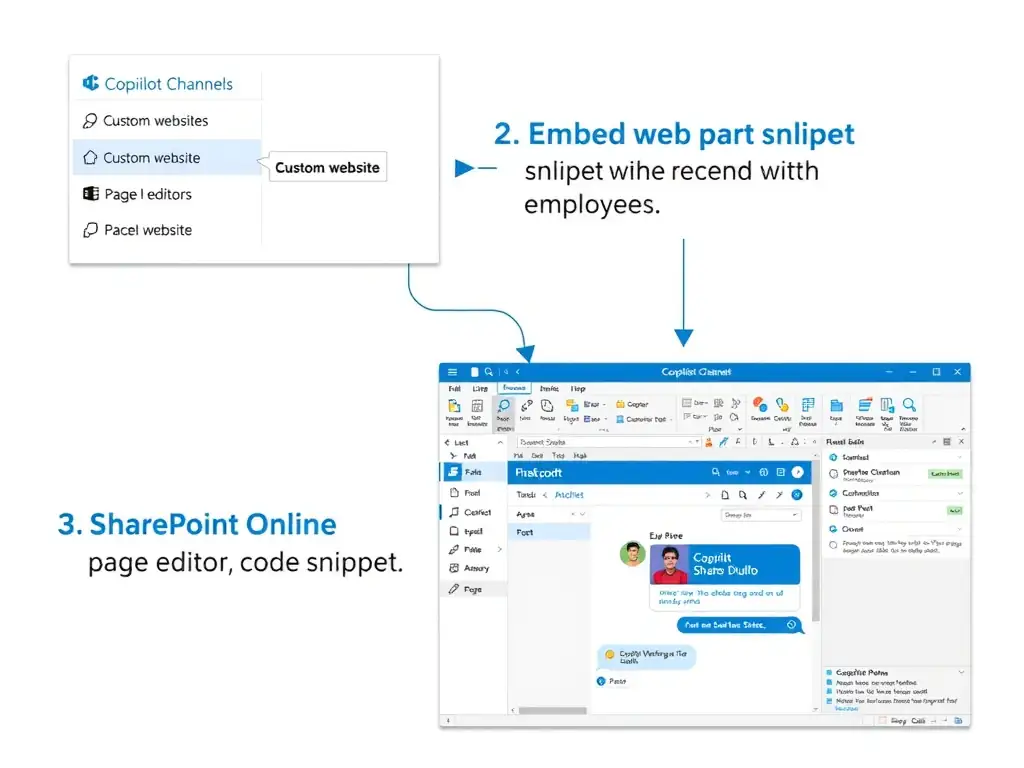
Short Explanation
Embedding a Copilot Studio agent in SharePoint is as simple as copying the iFrame snippet and dropping it into SharePoint's Embed web part. You don't need code deployment or SPFx packaging. The embed code from the Copilot Studio Channels section is designed for exactly this purpose.
Full Explanation
Copilot Studio provides a pre-built embed code (an iFrame snippet) in the Channels section under 'Custom website.' This snippet can be placed into any HTML-capable container, including SharePoint Online's built-in Embed web part. The page editor adds the Embed web part, pastes the iFrame snippet, saves the page, and the agent chat window appears inline on the SharePoint page. Users interact with the agent without navigating away.
The correct method is copying the agent's embed code from Copilot Studio's Channels section and pasting it into a SharePoint Online page using the Embed web part. This is the simplest, fully supported path for embedding a Copilot Studio agent on a SharePoint page.
The SPFx export approach is wrong. SharePoint Framework (SPFx) is a development model for building custom web parts and extensions. There is no supported mechanism to export a Copilot Studio agent as an SPFx solution package. SPFx would require custom development that defeats the purpose of Copilot Studio's low-code approach.
The SharePoint channel approach is wrong. Copilot Studio does not have a SharePoint channel that automatically provisions pages. The supported channels are Microsoft Teams, Facebook, Slack, a custom website embed, and others, but no channel creates SharePoint pages automatically. Administrators embed the agent manually using the embed code.
The Power Pages portal approach is wrong. Power Pages is a separate product for building external-facing web portals. It can host Copilot Studio agents, but it is not a mechanism for embedding an agent on an existing SharePoint Online intranet page. The scenario asks about an intranet page, not an external portal.
Exam tip: Know the three main deployment surfaces for Copilot Studio agents and how each works: Teams uses a native app or chat; SharePoint uses the Embed web part with an iFrame snippet; Power Pages uses a portal web part or embed snippet. The question will often test whether you confuse these deployment paths.