
A developer must add the Dataverse account table to a Power Apps code app and show a list of accounts in the USA with only the name, account number and city columns. Which approach follows the documented code app pattern?
Select an answer to reveal the explanation.
Short Explanation
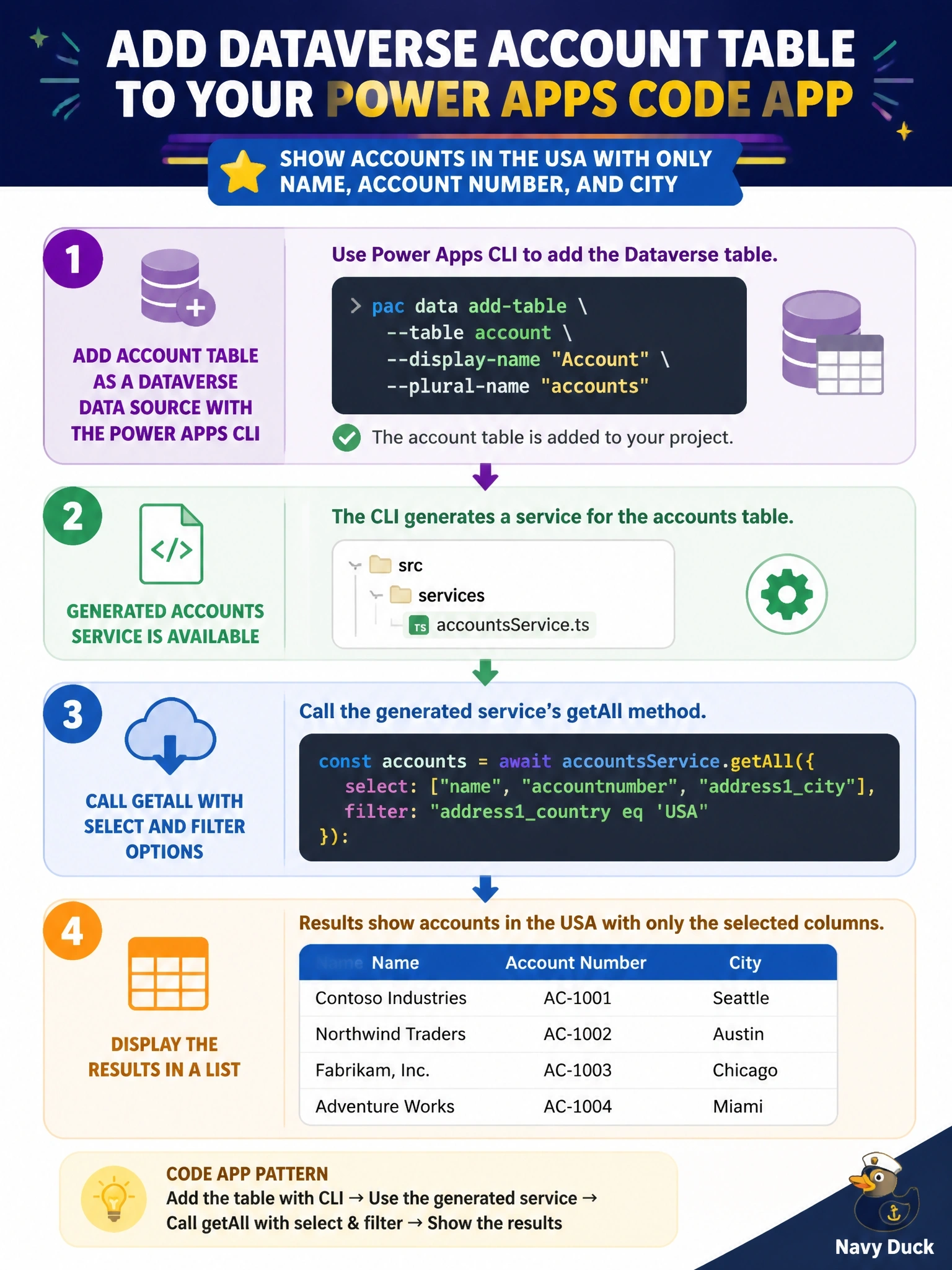
Dataverse plugs into a code app like any other data source: you add the table with the CLI, and you get a typed service. Then you ask getAll for just the columns and rows you want, instead of dragging the whole table into the browser.
Full Explanation
Code apps connect to Dataverse through the Power Apps client library. Running the Power Apps CLI's add data source command with the Dataverse connector and the table's logical name adds the table to the app and generates a typed model and service, for example an accounts model and an accounts service. The service exposes create, get, getAll, update and delete. getAll accepts options including select, filter, orderBy, top and paging settings, and Microsoft recommends always limiting the columns retrieved with select, so a filter on the country column combined with a select of name, account number and city returns exactly the needed data with delegation to Dataverse. Reaching Dataverse through a SQL Server connection is not the documented path for Dataverse tables, and it would bypass the native Dataverse integration that the client library provides. FetchXML is listed among the scenarios code apps do not yet support for Dataverse, so a FetchXML query cannot be sent through the generated service. Alternate key support is also listed as unsupported, and an alternate key identifies a single row for retrieval or upsert, so it is not a paging mechanism in any case. Exam caveat: lookups currently require following the Web API association guidance when creating or updating rows. Operational check: run the app locally and confirm in the network traffic that only the three columns are returned for US accounts.