
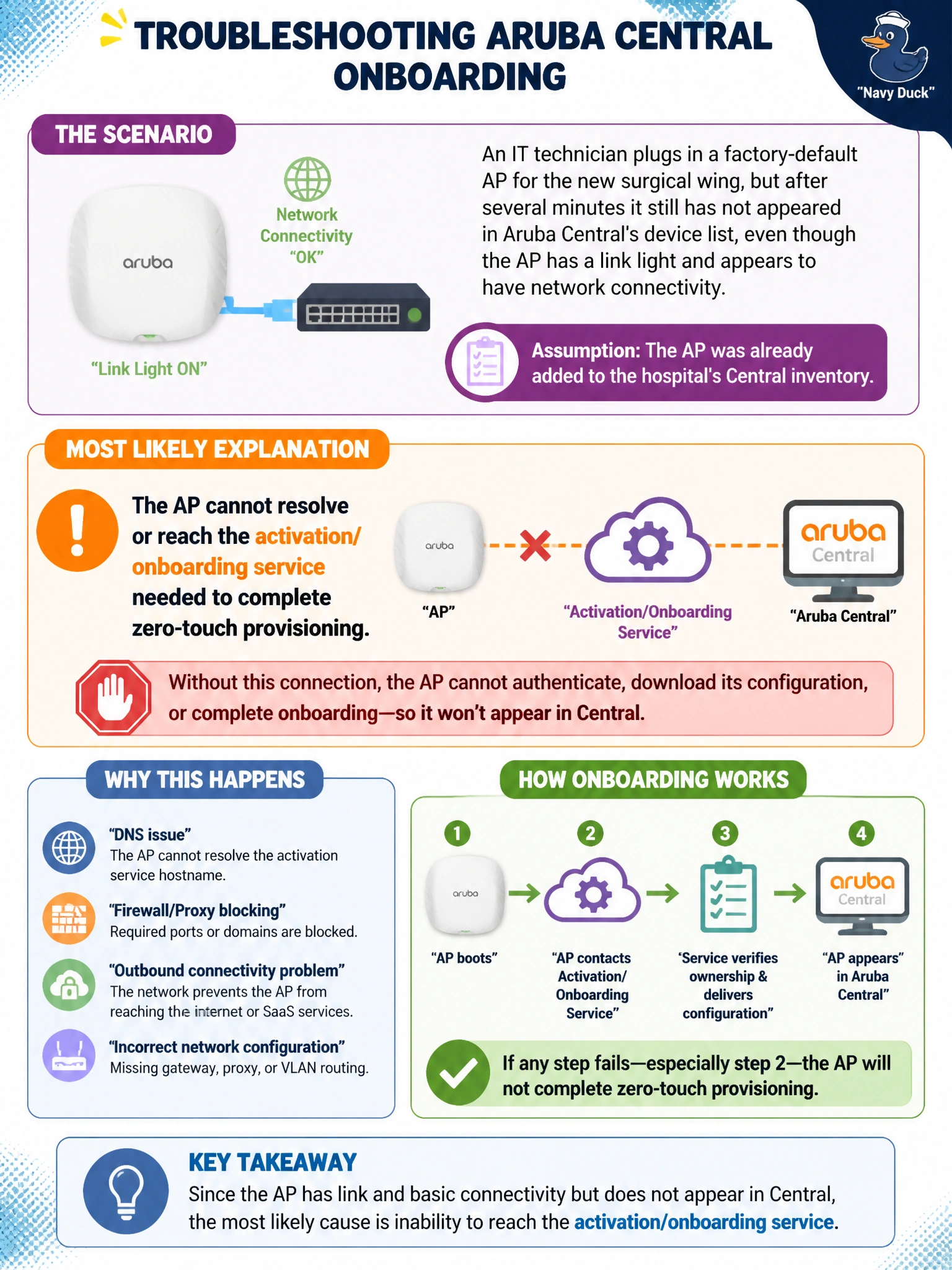
An IT technician plugs in a factory-default AP for the new surgical wing, but after several minutes it still has not appeared in Aruba Central's device list, even though the AP has a link light and appears to have network connectivity. What is the most likely explanation, assuming the AP was already added to the hospital's Central inventory?
Select an answer to reveal the explanation.
Short Explanation
If an AP has power and a link light but never shows up in Central, the missing piece is usually the road, not the destination — it can't find its way to the activation service. Check that its path out to the internet is actually open, the same way you'd check a stalled letter's address before assuming the post office lost it.
Full Explanation
For zero-touch provisioning to complete, the AP must be able to reach the internet-facing activation/onboarding service so it can identify itself and pull down its assigned configuration; if that reachability is blocked — by a missing route, a restrictive firewall rule, or a VLAN with no path out — the AP will sit connected at Layer 1/2 with a link light but never appear in Central, matching the symptom exactly. Factory RF channel settings affect what channel the AP transmits on for client association; they have no bearing on whether the device can reach a cloud service to register itself, so this doesn't explain the symptom. Central does not gate visibility in its device list behind a scheduled firmware update — devices typically appear as soon as they successfully check in, well before any firmware cycle runs. Manually typing an SSID locally is a step from the old on-site, human-driven setup model and isn't a prerequisite for zero-touch onboarding; requiring it would defeat the entire purpose of automatic provisioning. A caveat: this same symptom can also appear if the AP was never actually added to the hospital's Central inventory in the first place, so inventory assignment is worth double-checking alongside connectivity. Operational check: from the switch port the AP is connected to, confirm it received a valid IP and can reach the internet, then check DNS resolution to the activation service specifically.