
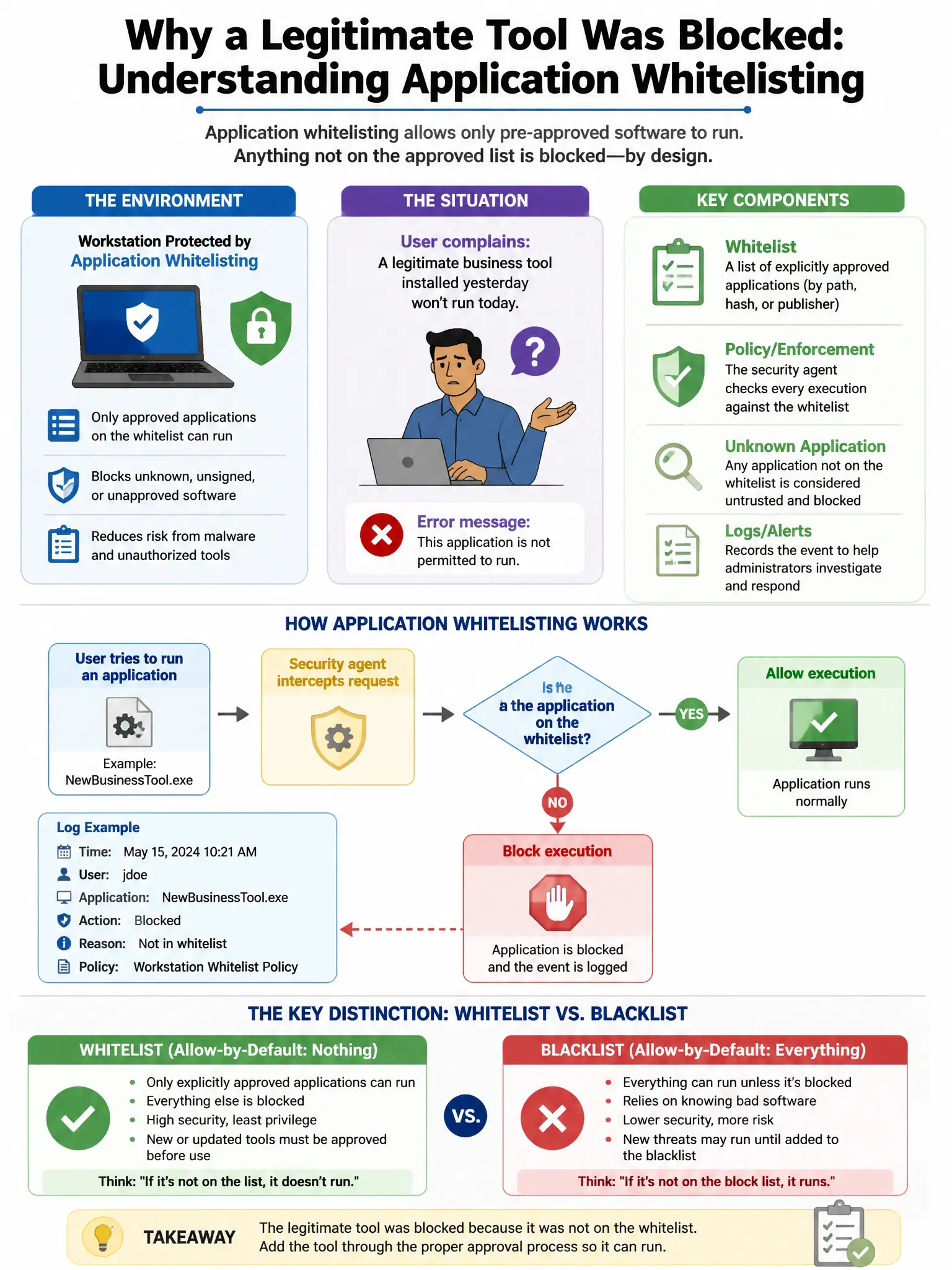
An organization wants to implement application whitelisting on workstations to prevent unauthorized software execution. A user complains that a legitimate business tool installed in their user profile (C:\Users\jdoe\AppData\Local\) is being blocked. What is the correct whitelisting policy adjustment?
Select an answer to reveal the explanation.
Short Explanation
Here's the deal — create a targeted publisher-based or hash-based exception after verifying the tool is legitimate, then investigate why a business app is installed in a user-writable path. That keeps whitelisting working while restoring the one tool. Attackers often drop malware in AppData because it's commonly excluded from controls.
Full Explanation
The correct adjustment is a publisher-based or hash-based exception for the specific tool after verifying legitimacy, plus investigating why a business application is installed in a user-writable path rather than a managed software directory. This preserves whitelisting while restoring the tool. Attackers commonly drop malware in user-writable paths such as AppData, especially when those paths are excluded from controls. Disabling whitelisting for all users is wrong because it removes the control. Allowing all executions from the user-profile path is wrong because it creates a blanket allow rule for a user-writable path where malware commonly lands. Allowing any file from AppData\Local is wrong for the same reason: blanket allow rules for user-writable paths are among the most commonly abused whitelisting bypasses.