
During a policy outage, a support engineer asks a junior administrator to collect three things straight from the appliance: the applied configuration and connection information as the device reports it, the Linux process listing for the Snort inspection processes, and the free space on the local file systems as Linux reports it. The Management Center only shows high-level health. Which device CLI workflow gathers all three items on the appliance itself?
Select an answer to reveal the explanation.
Short Explanation
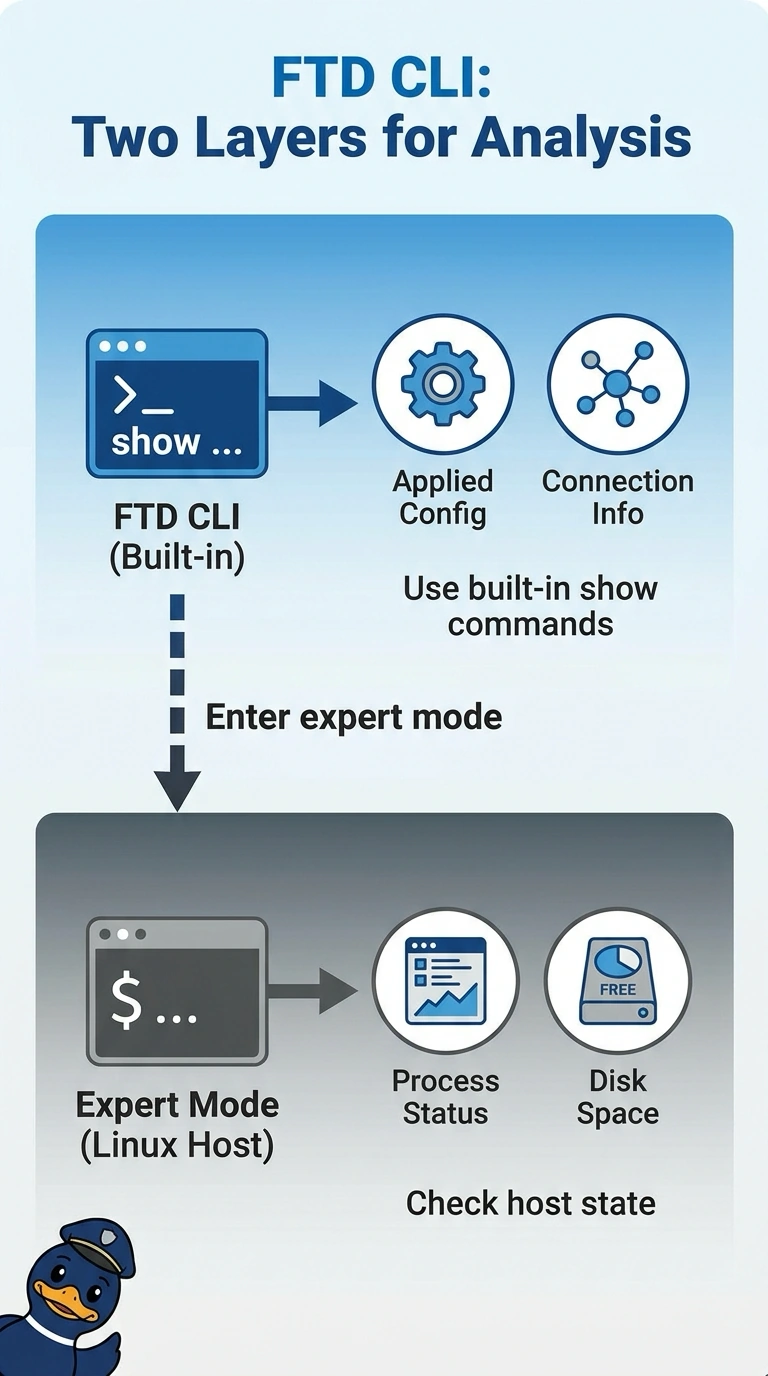
Use the right tool for each layer: show commands speak for the data plane, and expert mode gives you the Linux view of processes and file systems. Asking for a Linux process list means you need both.
Full Explanation
The Threat Defense CLI show commands report the applied configuration and connection information from the data plane exactly as the device enforces it, which is the first requirement. The request also asks for a Linux process listing of the Snort processes and Linux file-system free space; those come from expert mode with commands such as ps or top and df, because the regular CLI summarizes statistics rather than showing the underlying Linux process table. Running show commands alone yields Snort statistics and disk totals, but not the Linux process listing that was explicitly requested. Working only in expert mode misses the device's own view of applied configuration and connections, which the show commands present in the enforced form. The Management Center troubleshooting archive is generated and downloaded through the manager rather than collected directly on the appliance, and it does not give the live readings the engineer asked for. Exam caveat: expert mode is for read-only diagnostics; changes there are unsupported and can be lost. Practical check: run the show commands first, then enter expert, run ps and df -h, and exit back to the CLI.