
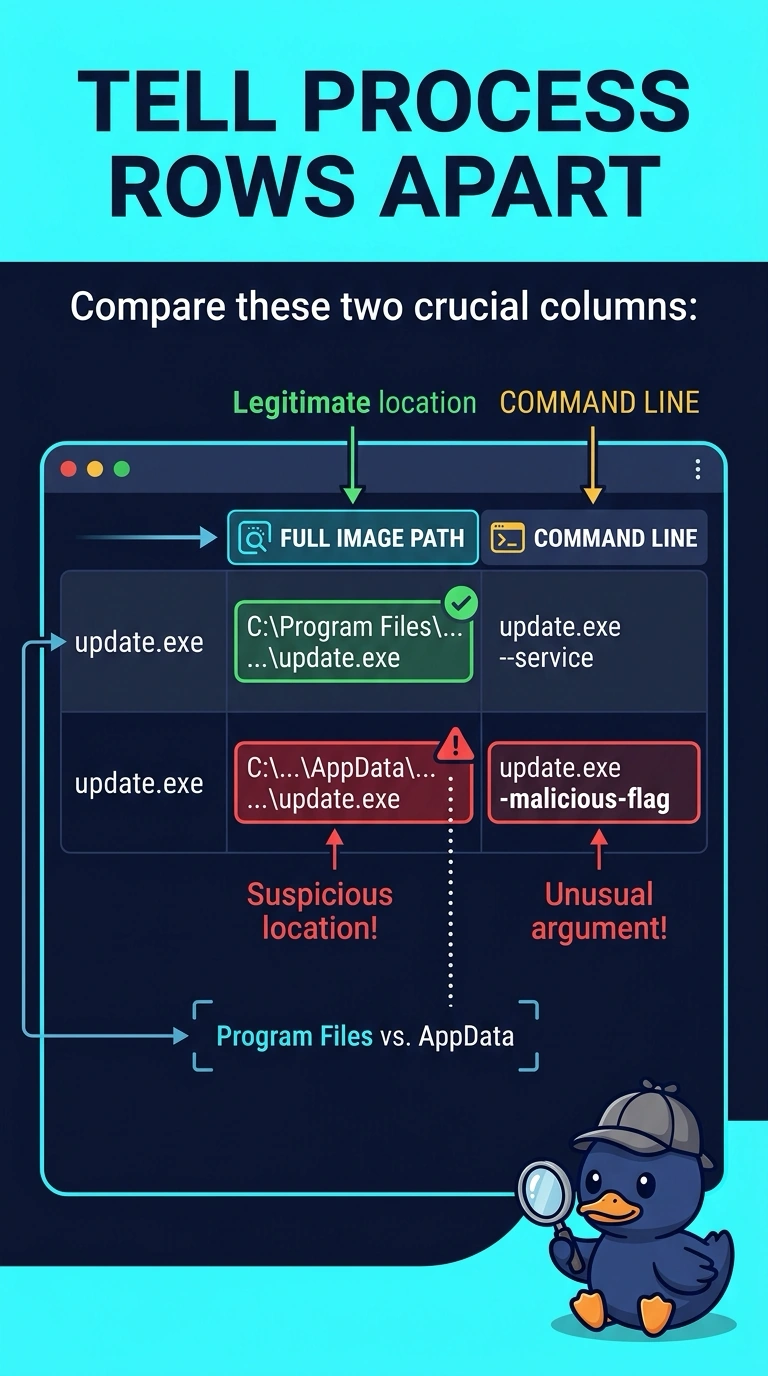
Process Explorer on a school laptop lists two processes named update.exe, one under Program Files and one under the user AppData folder. How do you tell those rows apart in that output?
Select an answer to reveal the explanation.
Short Explanation
Two coworkers can share a first name and still work in different buildings. You tell these update.exe rows apart by the full path and command line already on the screen, not by the shared name. A higher process number or a fatter memory number does not make either row the real updater.
Full Explanation
Process tools show more than the image name. Memory size and a process identifier describe the running instance, and two different files can share a name plus a similar footprint while living in different directories. The way to separate the two update.exe rows is to compare the full image path and command line shown on each process row, which is what places one binary under Program Files and the other under AppData. To treat both rows as the same program whenever the displayed image name is identical throws away the path evidence the tool is already displaying. Process identifiers identify instances and can be reused; their numeric magnitude does not establish age or legitimacy, not a vendor signature, so it cannot mark the legitimate updater. A larger memory footprint reflects how much the process has allocated, not whether the binary is malicious. Exam caveat: a familiar file name is not an identity; path, command line, and signer are what distinguish a lookalike. Operational check: open both rows in Process Explorer and record Image Path, Command Line, and the file hash or signer before you decide which process to contain.