
You are managing a high-performance cluster running a large-scale AI training job. During the run, training performance suddenly degrades, and the GPUs' power consumption spikes. You suspect that the GPUs are thermal throttling due to insufficient cooling in the racks. What are the two most appropriate actions to diagnose and address this issue? (Select two)
Select all correct answers, then click Submit.
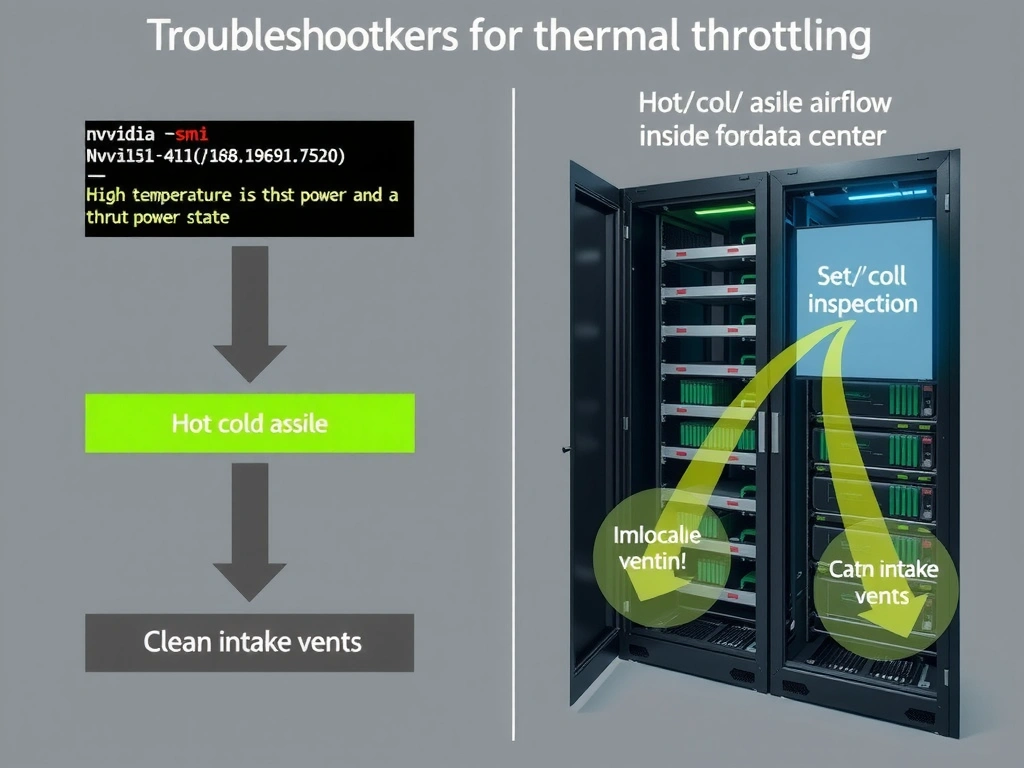
Short Explanation and Infographic
Here's the deal: when you pack a bunch of power-hungry AI GPUs into a rack, they run hot—like, really hot. If your cooling system isn't up to the task, those GPUs are going to protect themselves by throttling their clock speeds to prevent melting. To fix this, you've got to play detective. First, grab your CLI and run nvidia-smi to see exactly what those temperatures look like. If you see them hitting the thermal limit (usually around 80-85°C for NVIDIA enterprise cards), you've confirmed throttling. Next, you need to get off your chair, walk into the data center, and check the physical environment. Are the cold aisles blocked? Are the intake fans spinning? A clogged air filter or a misconfigured hot/cold aisle containment will tank your performance in a heartbeat. Trust me, raising clock speeds or disabling safety limits will only turn your expensive hardware into paperweights!
Full explanation below image
Full Explanation
In high-performance computing (HPC) clusters optimized for AI training, thermal management is a critical infrastructure requirement. Modern GPUs, such as the NVIDIA H100 or A100, consume significant power (up to 700W or more per GPU). When heat dissipation is inadequate, the GPU's internal thermal management system automatically reduces its operating frequency (clock speed) and voltage to decrease heat generation. This safety feature is called thermal throttling, which prevents permanent hardware damage but causes severe performance degradation.
To diagnose and address thermal throttling, administrators should take the following actions: 1. Monitor GPU Temperature using NVIDIA System Management Interface (NVIDIA-SMI): The command-line utility nvidia-smi provides real-time monitoring of GPU metrics, including temperature, power draw, clock speeds, and thermal throttling status (e.g., Clocks Throttle Reasons). Checking these metrics allows administrators to verify if the GPUs have reached their thermal limits and are actively throttling. 2. Inspect Airflow and Cooling Systems: If thermal throttling is confirmed, the root cause is usually environmental. Administrators must verify that the data center's heating, ventilation, and air conditioning (HVAC) systems are functioning, hot/cold aisle containment is intact, server fans are operational, and airflow pathways are unobstructed.
Let's look at the incorrect options: Overclocking/Increasing clock speed: Attempting to increase the GPU clock speed is counterproductive and dangerous. It increases power consumption and heat generation, which will worsen thermal throttling and potentially trigger an emergency thermal shutdown. Disabling thermal throttling: Thermal throttling is a hardcoded hardware protection mechanism managed by the GPU firmware and VBIOS. It cannot and should not be disabled, as doing so would lead to catastrophic hardware failure due to overheating. * Changing precision or settings unrelated to cooling: Reducing workloads or changing precision parameters might temporarily reduce heat, but it does not address the underlying infrastructure cooling failure that is causing the throttling under standard operating loads.