
Harborview Health System has deployed Microsoft 365 Copilot to 500 clinical and administrative staff. Three months in, the IT director wants to know which Microsoft 365 workloads (Teams, Outlook, Word, etc.) are seeing the highest Copilot adoption, and which workloads are being underutilized despite license assignment. Where should the administrator go to find this workload-level Copilot adoption data?
Select an answer to reveal the explanation.
Short Explanation
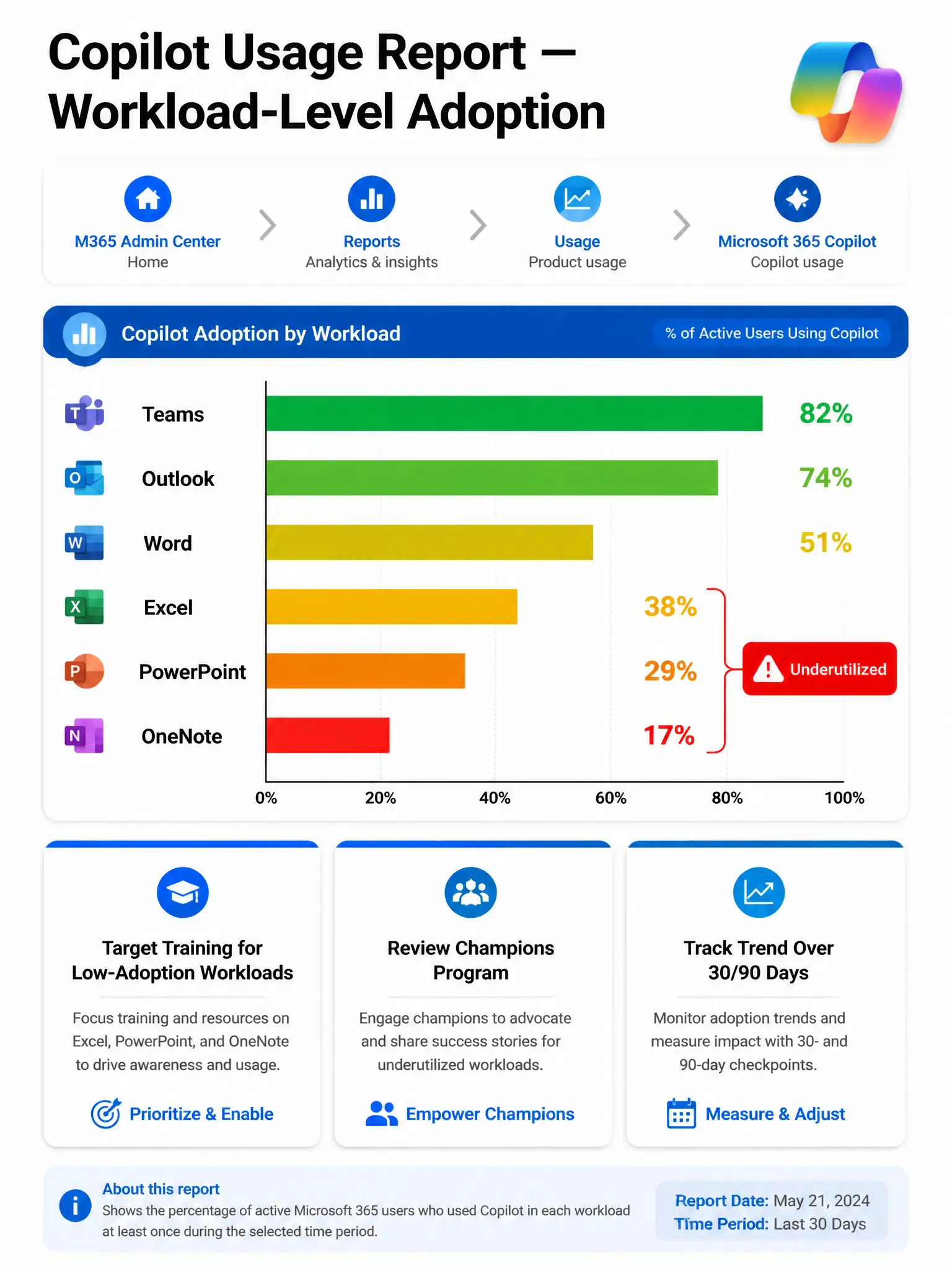
You want the Copilot usage report in the Microsoft 365 admin center because it shows active users and adoption rates by workload, so you can see where Copilot is catching on and where it isn't. It's your adoption heat map by product.
Full Explanation
The Copilot usage report in the Microsoft 365 admin center (Reports > Usage > Microsoft 365 Copilot) provides detailed adoption metrics broken down by Microsoft 365 workload. It shows active user counts, adoption percentages, and usage trends for Copilot in Teams, Outlook, Word, Excel, PowerPoint, OneNote, Loop, and other supported applications. This is the purpose-built report for the workload-level adoption analysis the IT director needs. The Microsoft Viva Insights option in the Teams admin center is incorrect because Microsoft Viva Insights provides employee experience and wellbeing analytics, such as meeting load, collaboration patterns, and focus time. While it may surface some Copilot-related patterns, it is not the primary tool for Copilot workload-level adoption metrics and does not live in the Teams admin center. It's also a separate product from Copilot usage reporting. The Microsoft Purview Activity Explorer option is incorrect because Microsoft Purview Activity Explorer is designed for data governance scenarios, tracking how labeled content is accessed, shared, and modified. It is not designed for product adoption reporting and does not provide workload-level Copilot usage breakdowns. The Microsoft 365 Apps usage report under Reports > Usage in the Microsoft 365 admin center is incorrect because that report tracks which Microsoft 365 desktop and web applications users are active in, meaning the apps themselves, not whether users are specifically using Copilot features within those apps. Users can be active in Word without having used Word Copilot at all. Exam tip: Know that the Copilot usage report is at Reports > Usage > Microsoft 365 Copilot in the Microsoft 365 admin center. The report includes licensed user count, active user count for 30 days, and workload-level breakdown. The distinction between Microsoft 365 Apps usage, which is app activity, and Copilot usage, which is AI feature activity within those apps, is a commonly tested nuance.