
The IT team at Harborview Medical Center created a shared mailbox called '[email protected]' and added five staff members as delegates with Full Access permissions. Three of the five users report that the shared mailbox appeared automatically in their Outlook desktop client, but two users say it did not appear. All five users have verified their Full Access permissions are correctly assigned. What is the most likely reason two users do not see the shared mailbox auto-mapped in Outlook?
Select an answer to reveal the explanation.
Short Explanation
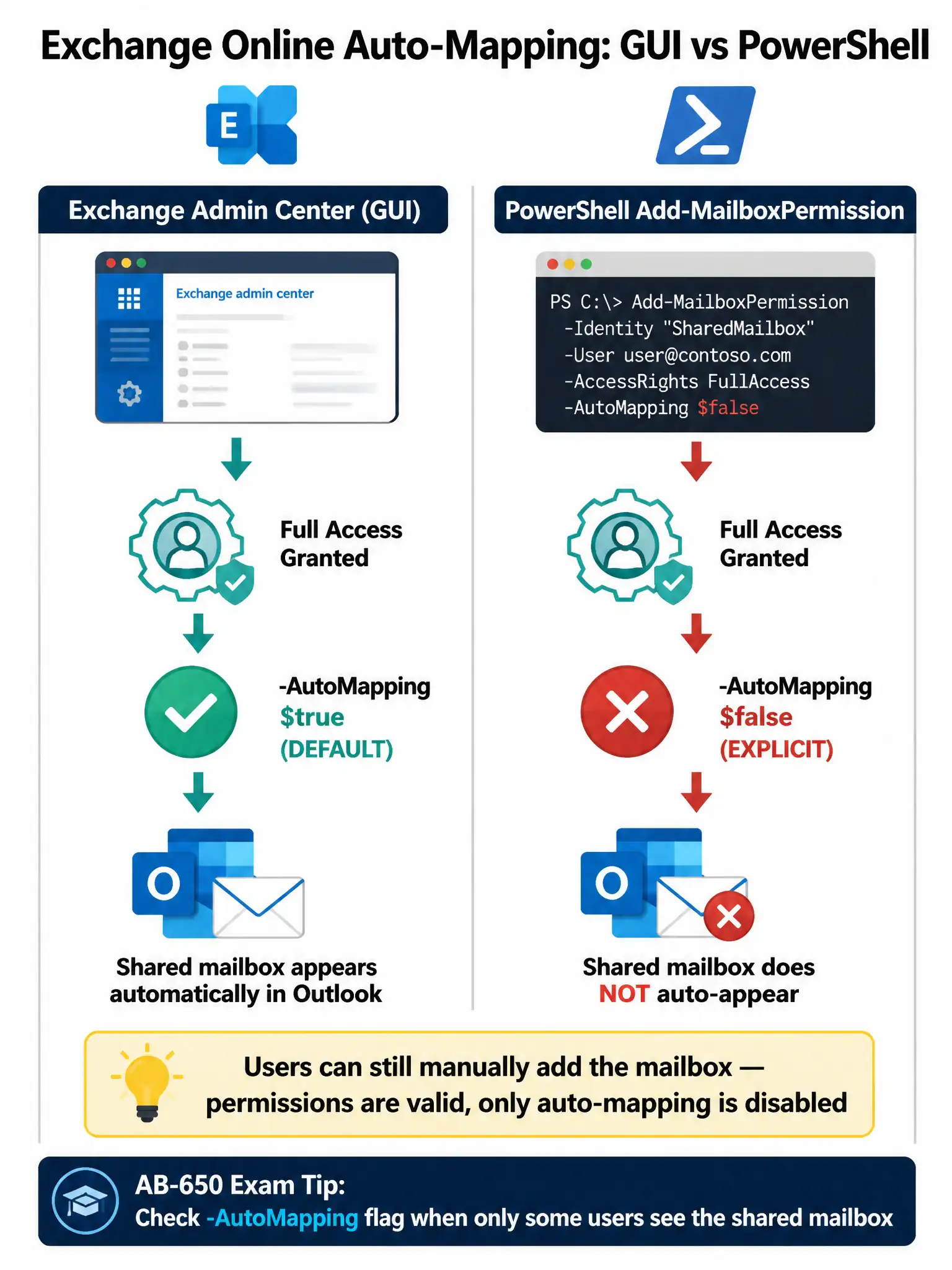
Auto-mapping is a server-side signal, not a permission mystery. If the two users were added with PowerShell and -AutoMapping $false, their Outlook clients never got the signal to show the shared mailbox. You can verify the permission entry and look for that flag.
Full Explanation
Auto-mapping is an Exchange Online feature that automatically adds a shared mailbox to a user's Outlook profile when they are granted Full Access permissions. By default, when Full Access is assigned through the Exchange admin center GUI, auto-mapping is enabled and Outlook detects the new mailbox via the Autodiscover service on the next profile refresh.
However, when administrators use the Add-MailboxPermission PowerShell cmdlet to assign Full Access, the -AutoMapping parameter defaults to $true — but it CAN be explicitly set to $false. If the two affected users had their permissions granted with '-AutoMapping $false', Outlook will never automatically add the shared mailbox to their profile, even though they have full permissions to access it. They would still be able to manually add the mailbox in Outlook.
The licensing claim is incorrect because shared mailboxes in Exchange Online do not require an Exchange Online Plan 2 license for auto-mapping functionality. Auto-mapping is a feature tied to the permission grant mechanism, not the mailbox license level. Shared mailboxes themselves do not require a user license at all, as long as their size stays under 50 GB.
The local Autodiscover restart claim is incorrect because auto-mapping is controlled server-side via the Autodiscover service. There is no 'Microsoft Exchange Autodiscover service' running on the user's local machine that needs to be restarted. Autodiscover is a cloud service, and Outlook queries it automatically. Users may need to close and reopen Outlook, but no local service restart is involved or required.
The Entra ID OU claim is incorrect because auto-mapping has no dependency on Entra ID organizational units. Exchange Online auto-mapping works across the entire tenant regardless of where user accounts reside in the directory structure. Organizational units in Entra ID are not a controlling factor for this Exchange Online feature.
Exam tip: Know that Add-MailboxPermission with -AutoMapping $false is the classic gotcha for this scenario. When troubleshooting auto-mapping issues for a subset of users who all have confirmed Full Access permissions, the PowerShell AutoMapping flag is the first thing to check. To verify, run: Get-MailboxPermission -Identity <mailbox> | Where {$_.User -like 'username'} and inspect how the permission was originally granted.