
A user at Fourth Coffee reports that they are unable to sign in to Microsoft 365 and receive an error message. The user's account appears active in the Microsoft 365 admin center. The admin needs to quickly identify the exact failure reason, error code, and which Conditional Access policy (if any) is blocking access. What should the admin do?
Select an answer to reveal the explanation.
Short Explanation
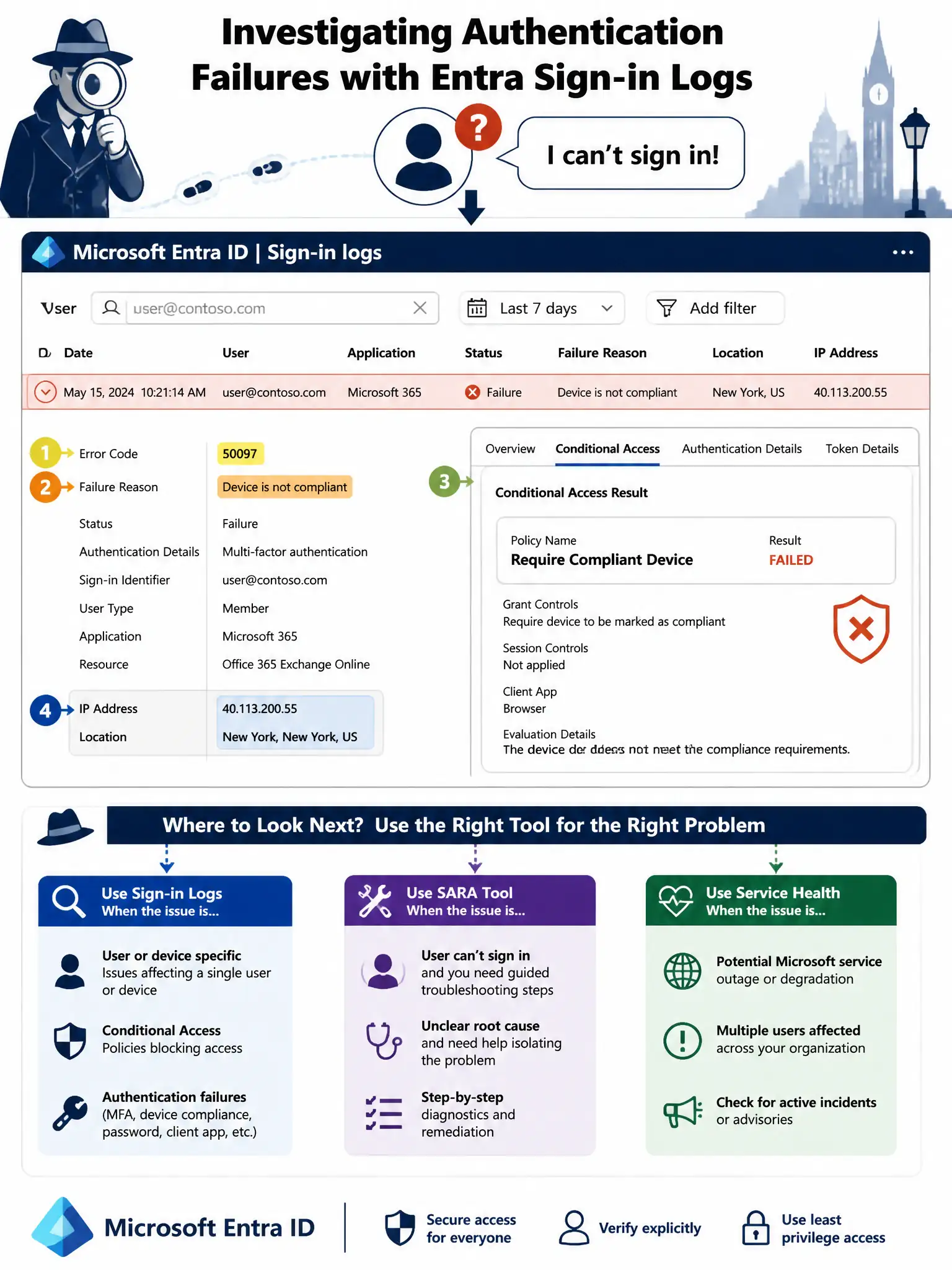
Sign-in logs in Microsoft Entra ID are your detective's magnifying glass. Every sign-in attempt, successful or not, gets logged with an error code, a plain-English failure reason, and a tab showing exactly which Conditional Access policies applied and whether they succeeded or failed. It's the fastest way to go from 'unable to sign in' to 'here's exactly why'.
Full Explanation
Microsoft Entra Sign-in logs (found under Microsoft Entra ID > Monitoring > Sign-in logs) record every authentication attempt against the tenant. Filtering by user principal name and the time window of the reported issue will surface the failed sign-in event. The event detail view includes: the error code and failure reason in plain language, the location and device information, a 'Conditional Access' tab showing every policy that was evaluated and whether it was satisfied, granted, or failed, and the authentication method used or attempted. This gives the admin complete diagnostic information in one place.
Resetting the user's password in the Microsoft 365 admin center and asking the user to try again is a shot in the dark. The account appears active, and without diagnostic information, a password reset may be entirely irrelevant. When the issue is a Conditional Access policy blocking access, a password reset will not help. Investigating first, acting second is always the right approach.
Running the Microsoft Support and Recovery Assistant (SARA) tool on the user's computer is a client-side diagnostic tool useful for troubleshooting Outlook, OneDrive sync, Teams, and Office activation issues on the end-user's device. While useful for application-specific problems, it does not give the admin insight into what happened at the identity layer during sign-in; that information lives in Entra sign-in logs, not on the client.
Reviewing the Microsoft 365 Message Center for active service health incidents affecting authentication is appropriate when the admin suspects a broad outage affecting many users. For a single user reporting an issue when others are working fine, service health is unlikely to be the cause. Sign-in logs target the specific user's authentication attempts and are the right first step for individual access issues.
Exam caveat: Microsoft Entra Sign-in logs are retained for 30 days with P1/P2 licensing or 7 days on the free tier. For longer retention, logs should be exported to a Log Analytics Workspace via Diagnostic Settings. The Conditional Access policy simulation tool lets admins simulate what policies would apply to a given user, location, and application combination, which is useful for pre-testing policies before deployment.